How to Use NEX’s New Ultra Cinema and Beachside Scenes for a Better VR Movie Experience
Explore NEX’s new Ultra Cinema and Beachside scenes, with adjustable theater seating, screen brightness, seaside lighting, screen placement, and wave volume.
When you watch a movie on Meta Quest 3, do you want the scale of a theater screen or a relaxed night by the shore with waves in the background? NEX has added two viewing environments, Ultra Cinema and Beachside, so you can give movie night a different feel without changing the video itself.
Quick Navigation
- Choose a viewing space that fits your mood
- Ultra Cinema: a theater-size screen
- Beachside: a seaside movie night
- How are viewing environments different from 3D playback?
- Further Reading
Choose a viewing space that fits your mood
Start with the kind of movie night you have in mind. NEX offers several viewing environments: Emberwood is a warm forest cabin with positions inside and outside; Max Cinema has the spacious feel of a traditional theater; Mono Lux is understated and simple; Coldpeak places the screen beside a lake among snowy mountains; Voidline offers a quiet, minimal space; and Passthrough keeps your real surroundings visible. Try one or two and see which setting feels right for the movie.
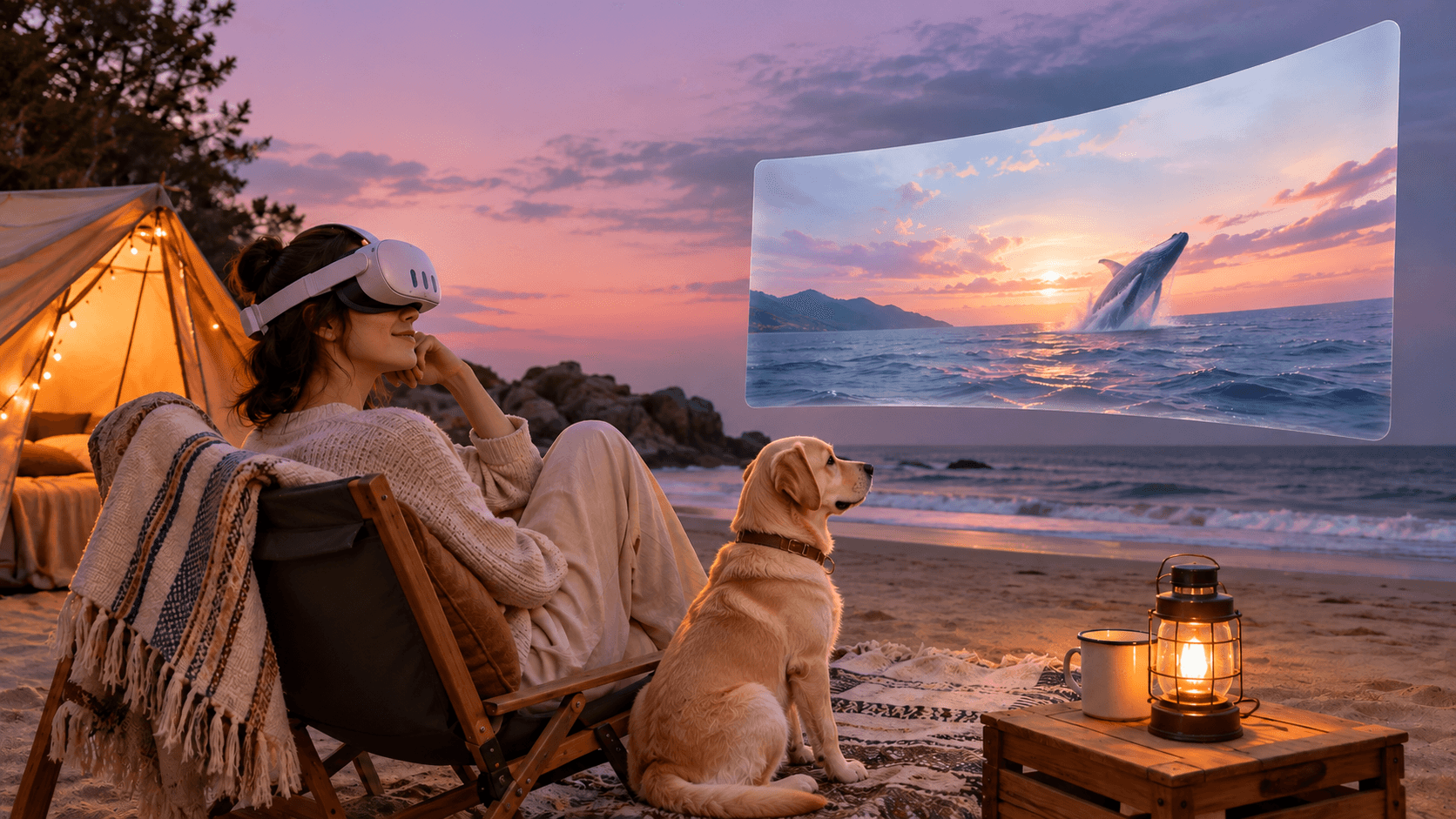
NEX recently added Ultra Cinema and Beachside. Ultra Cinema is a large-screen theater where you can switch between the front, middle, and back rows and adjust screen brightness. If you like sitting close to the big screen, try the front first, then compare the middle and back. Beachside brings the screen to the shore, with Morning, Sunset, Night, and Late Night moods. You can also change the screen size and height and adjust the sound of the waves. For a more laid-back movie night, Sunset or Night is a natural place to start.
NEX 3D Video Player is a video player for Meta Quest with multiple playback options and viewing environments. For more ideas on setting up a personal space, see How to Create a Personal VR Movie Theater for Free with NEX.
Ultra Cinema: a theater-size screen
Ultra Cinema provides a large-screen theater environment with front, middle, and back seating positions. The front row brings the screen closer into your view, while the middle and back rows give you more distance. Compare the positions with a familiar clip and see where subtitles and the full picture feel easiest to follow.
You can also adjust screen brightness. If a movie has darker scenes, try a small change and keep the level that looks comfortable to you. Seating distance and brightness give you more ways to tune the theater view to your preference.
Beachside: a seaside movie night
If you feel like stepping away from a traditional theater, try Beachside. It offers four time-of-day moods: Morning, Sunset, Night, and Late Night. You can adjust the screen size and height, as well as the volume of the waves.
For example, choose Sunset or Night, place the screen at a comfortable height, and set the wave sound so it adds a seaside feel without competing with dialogue. There’s also a little dog quietly keeping you company, adding a playful touch to the movie-night scene.
Not sure where to start? Play a short clip you know well and try a few time settings, screen positions, and wave levels. Keep the combination that feels comfortable to watch and listen to.
How are viewing environments different from 3D playback?
Ultra Cinema and Beachside change the virtual space around your video. 3D playback changes how the video itself is displayed. They are separate settings: choosing a scene does not automatically turn a regular 2D video into 3D.
NEX supports compatible 3D videos and offers 2D-to-3D options. Learn more in How to Watch 3D Movies on Meta Quest and on the NEX 2D-to-3D page.
To see NEX’s real-time 3D feature, watch this NEX real-time 3D video. It covers 3D playback and does not show the Ultra Cinema or Beachside environments.
Once you choose a setting, adjust the seat, brightness, screen, and ambient sound to suit your habits. Ultra Cinema lets you compare theater views, while Beachside offers a change of scenery. Start with a familiar video and see which setup you enjoy.