How to Watch 3D Movies on Meta Quest: 3 Simple Methods
Want to watch 3D movies on Meta Quest? Learn how to play 3D content or convert regular 2D movies to stereoscopic video using NEX, Quest Gallery, and Owl3D.
How to Watch 3D Movies on Meta Quest: 3 Simple Methods
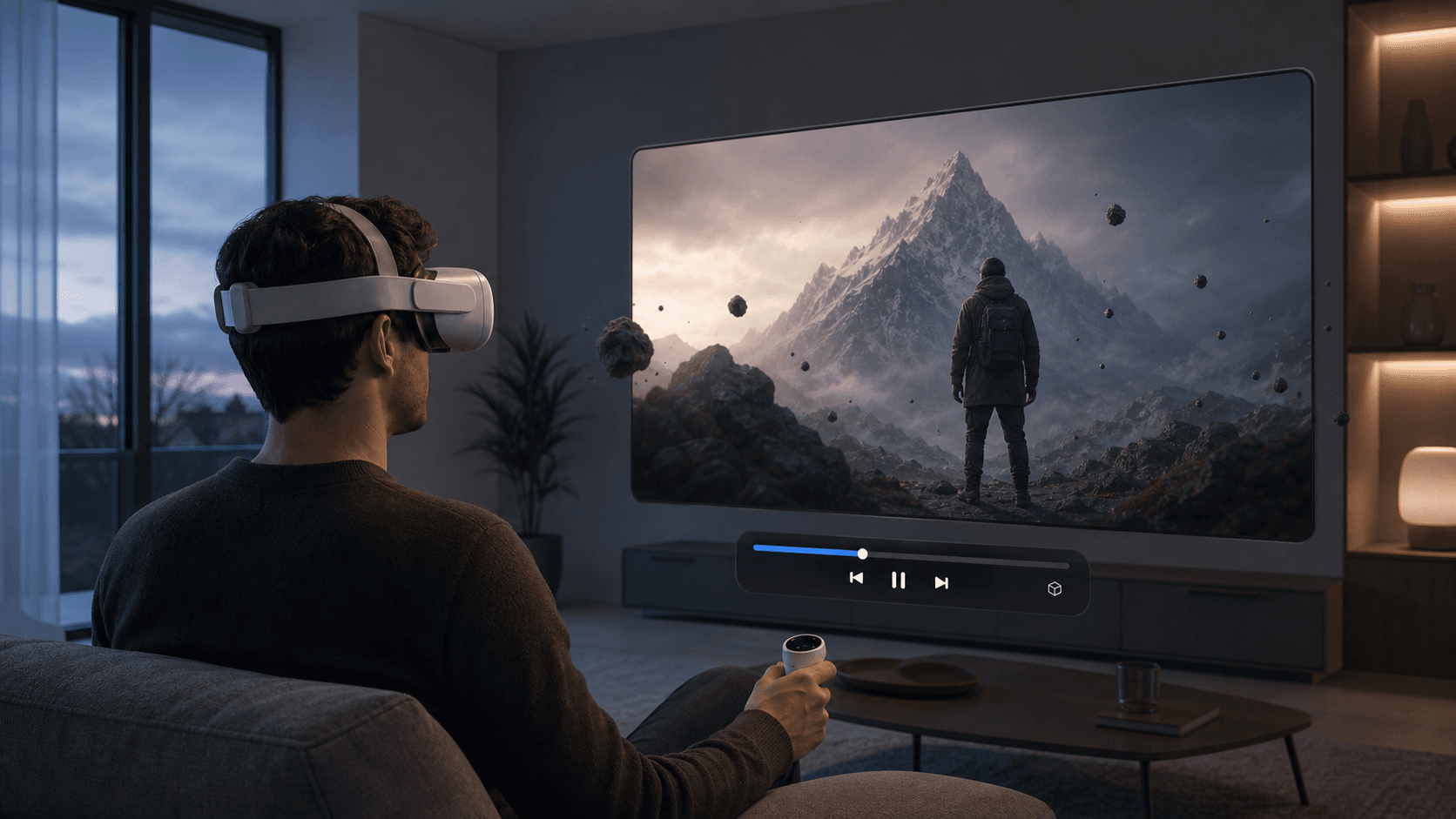
Watching 3D movies on Meta Quest is not just about making the screen bigger—it's about giving the picture real depth: characters seem to stand in front of the screen, while backgrounds recede into the distance. However, your movie might already be in 3D SBS format, or it might be a regular 2D video, and the viewing methods differ.
So, this article covers the three most common ways: using NEX VR Player for conversion and playback, using Quest Gallery directly, and using Owl3D to generate exportable 3D files on your computer.
How to Choose Among the Three Methods?
| Method | Best For | Key Features |
|---|---|---|
| NEX | Those who want to minimize setup steps and watch immediately after conversion | Conversion is local, data is more secure |
| Quest Gallery | Those who want to try the built-in system effect first | No need to install another app, but the feature may not be rolled out yet |
| Owl3D | Those who want to fine-tune effects or export 3D files | More control, but more steps and storage costs |
In short, if you already have SBS or Top-Bottom content, there's no need to convert again; just open it with a player that supports the corresponding 3D layout. For regular 2D movies, choose a tool based on your needs: use NEX if you don't need to export files; try Gallery if the 3D entry is already available; use Owl3D if you need to save the converted result or fine-tune depth.
When trying for the first time, it's a good idea to test with a short clip of a few minutes to check the depth and viewing comfort before processing the entire movie.
Before You Start: What Type of Movie Do You Have?
- If you see two side-by-side images when you open the file, it's SBS 3D.
- If you see two images stacked vertically, it's Top-Bottom / Over-Under 3D.
- If you see only one normal image, it's a regular 2D video that needs to be converted to 3D to get the stereoscopic effect.
Native 3D content already contains left and right eye images and usually looks more natural than AI-converted content. 2D-to-3D conversion estimates depth from the picture and does not turn the movie into a VR180 or 360° video where you can look around freely.
Method 1: Convert and Watch with NEX—The Most Comprehensive
NEX VR Player combines computer-side conversion and Quest-side playback in one workflow. The converted result is played directly by NEX, so you don't need to choose an output format like SBS or manually copy new files to your headset.
The process is short:
- Install and open NEX on your Meta Quest.
- Download NEX Link from the NEX official website on your computer.
- Add the movie or its folder to NEX Link.
- Right-click the movie and select "Convert to 3D."
- Connect your computer and Quest to the same local network, open the original video in NEX's media library; after conversion, it will automatically play in 3D mode.
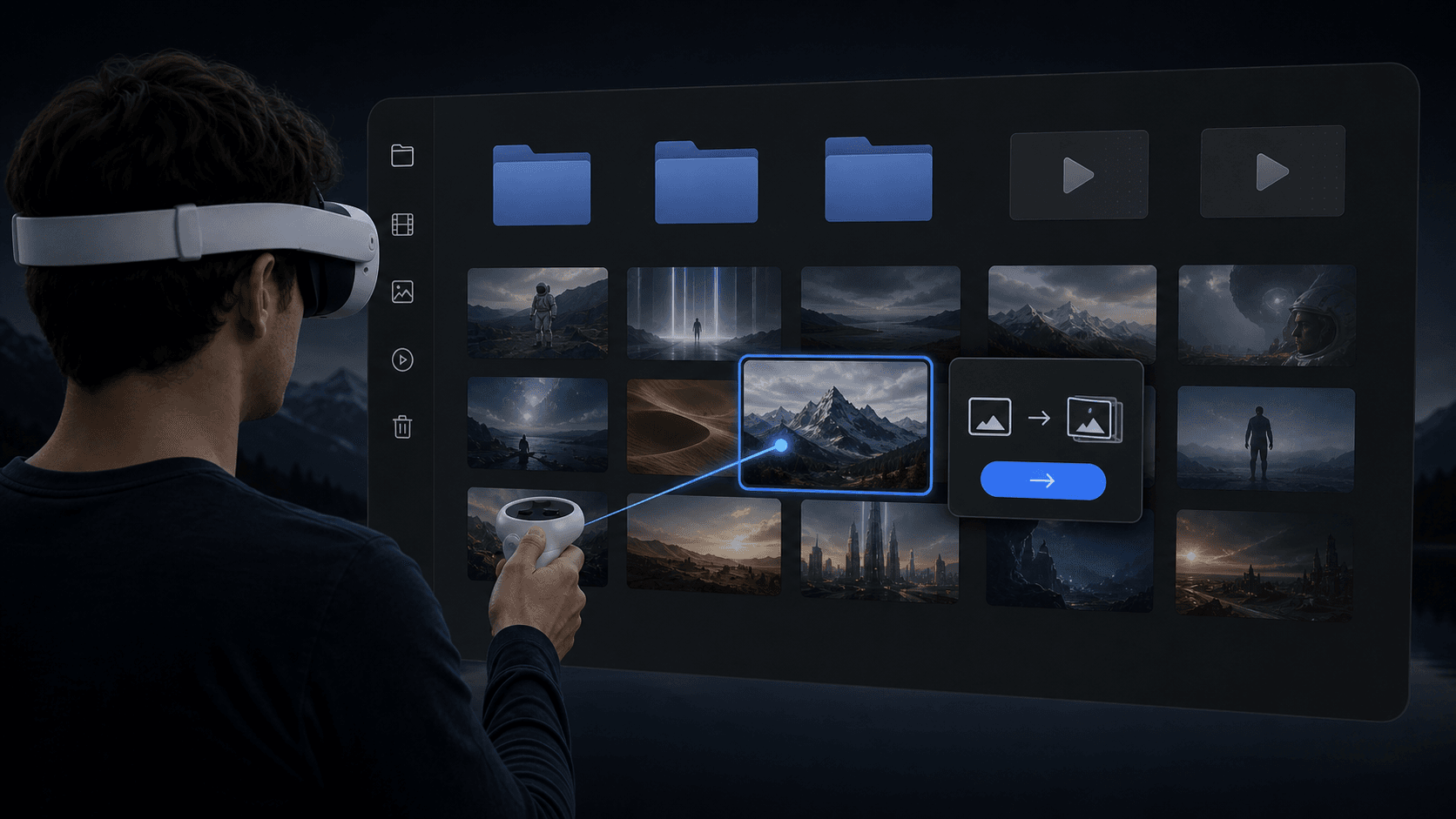
NEX recently expanded computer compatibility. Now Windows computers are no longer limited by chip brand; if you use a Mac, you need an Apple Silicon M-series chip and macOS 15 Sequoia or later. The entire conversion process is done locally, and your movie is not uploaded to the cloud.
Additionally, NEX offers Fast and Quality options, so you can choose according to your needs.
If your movie is already in SBS or Top-Bottom format, no conversion is needed. Just play it in NEX and select the corresponding 3D layout; if the depth seems reversed, try swapping the left and right eyes.
Method 2: Direct Experience with Quest Gallery
The new Quest Gallery is gradually rolling out 3D viewing capability for 2D media. Its advantage is that you don't need to install a third-party player: put supported photos or videos into Gallery, open the media, and check if a 3D option appears.
However, this feature may still be affected by Quest model, system version, account, and phased rollout. If you don't see the entry in Gallery, it's not necessarily a mistake; try updating the system and Gallery, then check again. Gallery is better suited for directly opening videos that are already in it; whether it works for your content depends on the current entry and format support provided by the system.
Method 3: Generate Exportable 3D Files with Owl3D
Owl3D is a 2D-to-3D tool that runs on Windows or Mac. Unlike NEX, it focuses on generating a standalone 3D video file, which can be output in formats like SBS, Top-Bottom, and MV-HEVC, then transferred to Quest or played with a compatible player.
The basic workflow is: import a 2D movie, choose SBS output suitable for Meta Quest, adjust depth and stereoscopic strength, wait for conversion to finish, then copy or stream the file to Quest. Owl3D offers more depth, pop-out, and picture configuration options, making it suitable for those willing to spend time fine-tuning effects or wanting to keep the converted result.
The trade-off is direct: an extra export and transfer step, longer processing time for long movies, and the new file takes up additional hard drive space.
Related reading
- NEX Guide to 2D-to-3D and Real-Time 3D
- What Is MVC 3D? A Meta Quest 3D Blu-ray Guide
- How to Watch Movies and Videos on Meta Quest
Frequently asked questions
Why is there little or no depth after I select 3D?
Check the source first. Native 3D video needs the correct SBS or Top-Bottom layout; swap the left and right eyes if the depth looks reversed. Selecting a 3D layout for an ordinary 2D video does not create full stereoscopic depth by itself. See the NEX 2D-to-3D guide for the appropriate workflow.
Do SBS or Top-Bottom movies need to be converted again?
No. Play the file directly and select the layout that matches the source. AI 3D or 2D-to-3D processing is only needed for a normal single-view 2D video.