Blog
August 10, 2026tutorial

How to Watch Movies and Videos on Meta Quest: A Beginner's Guide to Streaming, Local Playback, and PC Transfer

Learn how to watch online videos on Meta Quest, and play 2D, 3D, and VR videos from local storage, USB, PC, and NAS.

How to Watch Movies and Videos on Meta Quest: A Beginner's Guide to Streaming, Local Playback, and PC Transfer

How to Watch Movies and Videos on Meta Quest: A Guide to Streaming, Local Playback, and PC Transfer

Turning your Meta Quest into a private cinema often isn't about whether it can play videos, but where your movies actually are: on the Quest itself, a USB drive, your computer, NAS, or a network server. Especially when your library includes regular 2D movies, 3D SBS, VR180, and 360° videos, choosing the right connection method and display mode can save you a lot of hassle.

This guide will walk you through finding videos, connecting your library, selecting display modes, setting up subtitles, and adjusting your viewing environment, so even beginners can get started easily. Let's rediscover your cherished videos from a VR perspective, not just playing them, but enjoying a more immersive and comfortable viewing experience.

Please note: Different Quest models may have varying display quality, decoding performance, and mixed reality capabilities.

User watching a movie in a virtual cinema on Meta Quest

Watching on Meta Quest: First, Distinguish Three Needs

Your NeedSuitable MethodPersonal Video Files Required?
Watch subscription platforms, websites, or live streamsUse the corresponding Quest app or browserNo
Watch movies you've downloaded or savedUse a local media playerYes
Watch a library on your PC or NASUse LAN media playbackYes
Watch 3D, VR180, or 360° contentUse a player that recognizes the corresponding display formatUsually yes

Online Video and Personal Media Libraries Are Not the Same

Online video platforms provide content, accounts, subscriptions, and copyright-protected playback. You can typically watch them through the platform's own Quest app, Meta Quest Browser, or Horizon TV. The available quality, subtitles, region, and immersive environment are determined by the service itself.

If your videos are already stored on your computer's hard drive, NAS, USB, or Quest local storage, you need a personal media player. NEX VR Player is designed for such local and network libraries: it's used to browse and play video files you already own or have access to. It does not provide a subscription-based movie library or replace the account services of online video platforms.

Playing Your Own Movies: First, Determine Where the Files Are Stored

For personal video files, you first need to decide whether to copy them to the headset or read them from another device. Common methods can be divided into three categories.

1. Stored on the Quest Locally

After copying movies to directories like Movies, Download, or Video on the Quest, you can play them directly without a network connection. This method offers the most stable connection and is ideal for travel and offline viewing.

Its downside is that it consumes headset storage. 4K, 8K, or high-bitrate 3D movies can be tens of gigabytes, and if your library is large, frequent file copying can be cumbersome.

2. Stored on a USB Storage Device

If both the player and the USB device are correctly recognized by the Quest, you can read external videos via USB-C or OTG. This way, you don't occupy the headset's internal space and can easily carry large files.

In practice, you need to pay attention to USB permissions, device power, file system, and adapter compatibility. If the USB device doesn't appear, reconnect it and check if the system prompts for access authorization.

3. Stored on a Computer or NAS

If your movies are mainly on a computer or NAS, network playback is usually the most convenient. You don't need to copy the entire movie to the Quest first; as long as the headset and the media device are on a mutually accessible network, you can directly browse and play files.

Common connection methods include:

  • SMB: Suitable for Windows shared folders and most NAS devices.
  • DLNA: Relatively simple to set up, good for automatically discovering media servers on the LAN.
  • WebDAV: Suitable for manually connecting to servers, NAS, or storage services that support WebDAV.
  • NEX Link: Used to connect to a computer's media library, and can also work with a supported computer for 2D-to-3D conversion.

Understanding 2D, 3D, VR180, and 360° Videos

Just because a video plays doesn't mean the display mode is correct. If you choose the wrong projection or stereoscopic format, the image may be stretched, left-right reversed, or shown as two separate windows.

Regular 2D Videos

Most movies, TV shows, and home videos are flat 2D videos. In VR, they typically appear on a virtual flat or curved screen, similar to watching in a cinema.

3D SBS and Over-Under Videos

3D videos store separate left-eye and right-eye images. The most common layouts include:

  • SBS (Side-by-Side): Left and right images side by side.
  • Over-Under / Top-Bottom: Images arranged vertically.

If the stereoscopic direction is incorrect, you can swap the left and right eyes. If the proportions of people look abnormal, check whether the video uses Half SBS, Full SBS, or another aspect ratio.

VR180 Videos

VR180 covers about 180° in front of the viewer. Binocular VR180 provides noticeable depth and immersion, while monocular VR180 mainly offers a wide immersive field of view. Because the image is expanded over a larger field of view, VR180 requires significantly higher resolution than regular movies. If the resolution is too low, even if the file plays fine, it may still appear blurry in the headset.

360° Videos

360° videos surround the viewer, suitable for travel, documentaries, event recordings, and panoramic content. They emphasize looking around, but don't necessarily have stereoscopic depth; whether it's 3D depends on whether the video includes separate left and right eye images.

Bringing Your Personal Library into Quest: An Example with NEX

When videos are scattered across the headset, USB, computer, and NAS, being able to access and play them all in one player is often more important than just format support. Taking NEX as an example, it can browse videos from Quest local storage, USB, DLNA, SMB, WebDAV, and NEX Link media sources. The following process is also suitable for those organizing their Quest personal library for the first time.

Step 1: Open the Player and Select a Media Source

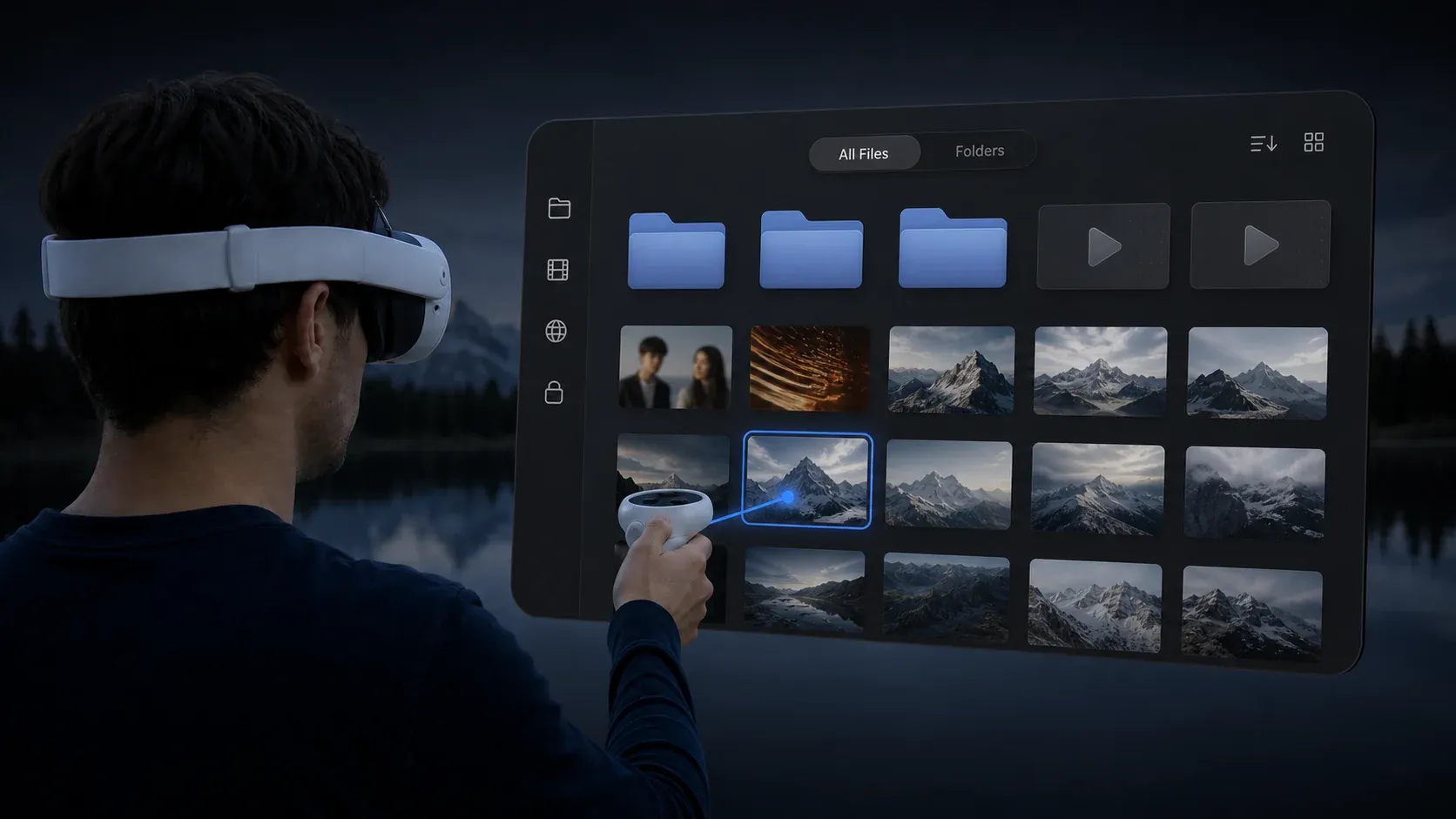
After opening NEX's media library, choose local device, USB, LAN device, or an already added server based on where the movie is located.

If using SMB or WebDAV, you may need to enter the server address, username, and password. WebDAV usually requires manual addition; whether SMB and DLNA can automatically discover devices is affected by router broadcast, multicast settings, and LAN structure.

User operating NEX media library and selecting a video on Meta Quest

Step 2: Select a Movie

Enter the folder and open the video. For regular movies, the player typically uses a flat screen; for 3D, VR180, or 360° files, check that the display mode and stereoscopic layout match the source.

File extensions only indicate that the player can recognize the file type, not that every container, codec, audio track, and subtitle combination can be hardware-decoded. If a file appears in the library but won't play, check the internal video and audio codecs.

Step 3: Check Display Mode

After playback starts, confirm the following:

  • Whether regular movies are displayed on a flat or curved screen.
  • Whether SBS videos are combined into a single stereoscopic image.
  • Whether the left and right eyes are reversed.
  • Whether the projection direction of VR180 or 360° videos is correct.
  • Whether the proportions of people and the aspect ratio look natural.

If the player doesn't correctly recognize the video, you can manually adjust the display mode, stereoscopic layout, aspect ratio, or rotation.

Step 4: Select Subtitles and Audio Tracks

If the video contains multiple embedded subtitles or audio tracks, you can switch them in the playback controls. For external subtitles, the safest approach is to place the subtitle file in the same directory as the video and use a similar filename.

NEX currently has full parsing support for external subtitle formats including SRT, SSA, ASS, VTT, and TTML. Whether subtitles display correctly also depends on file encoding and subtitle content. For SMB videos, you can also search for SMB subtitle files in the same directory.

Step 5: Adjust Screen and Environment

The right screen size is more important than simply "bigger is better." If the screen is too close or too large, reading subtitles and observing the edges of the picture can be tiring.

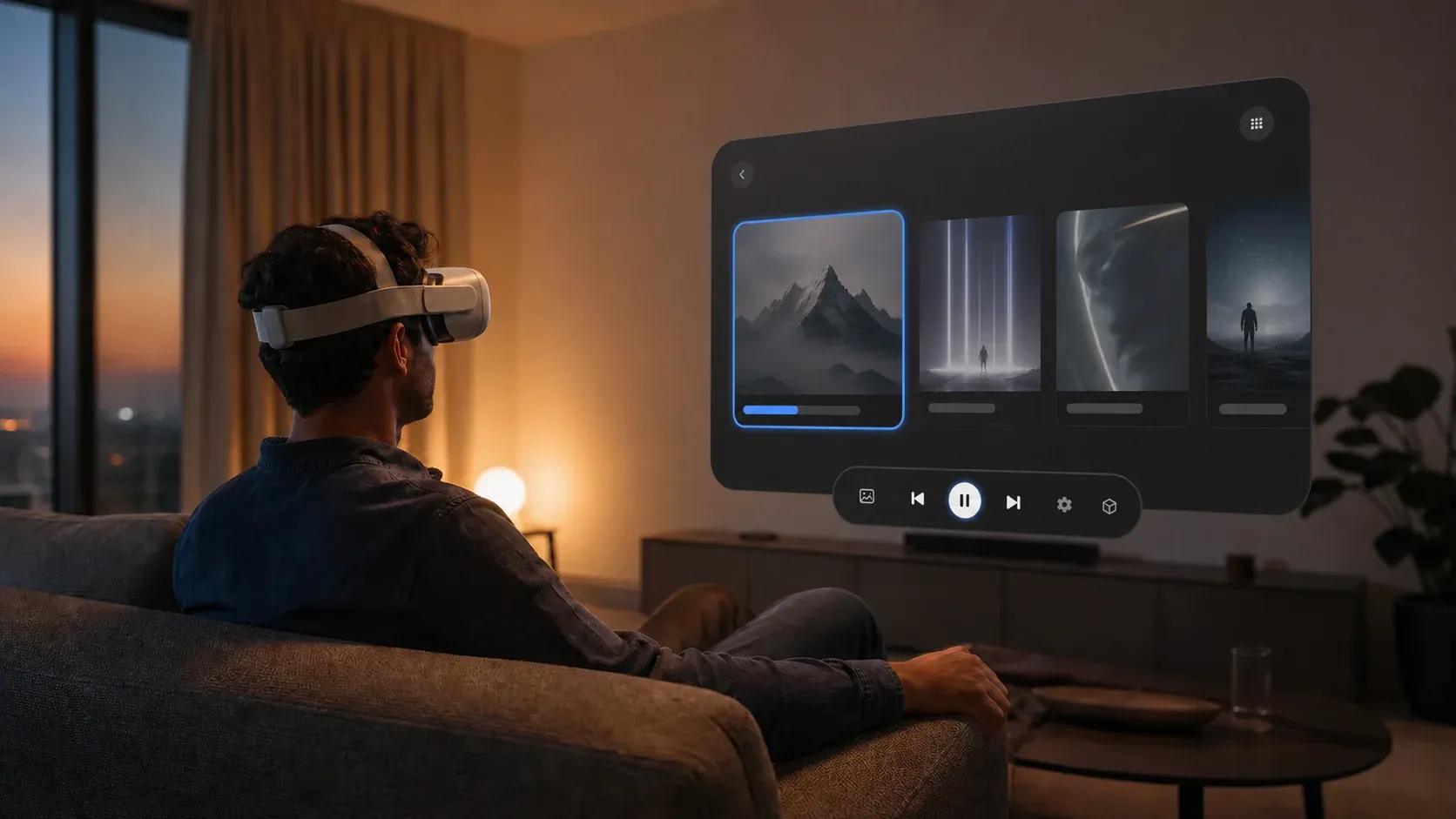
If using NEX, you can also choose from viewing environments like MonoLux, Voidline, Coldpeak, MaxCinema, Emberwood, and Passthrough. Different environments offer different adjustable options, which may include screen size, screen distance, curvature, seat, lighting, ambient sound, and dimming of the real-world background.

It's recommended to first place the screen in a position where you don't need to turn your head frequently, then fine-tune the size based on the movie's aspect ratio. When watching content with subtitles, consider reducing the screen size or increasing the viewing distance.

NEX-style immersive viewing environment by a snowy mountain lake

How to Play Movies from a Computer or NAS

For large movie libraries, reading from a computer or NAS over the LAN is often more efficient than repeatedly copying files. Here, "network playback" means reading your own media files, not subscribing to online video services.

Using SMB Shared Folders

SMB is suitable for Windows computers and NAS. The basic process is:

  1. Create a shared folder on the computer or NAS.
  2. Configure read permissions for the shared folder.
  3. Ensure the Quest and the shared device are on the same LAN.
  4. Wait for automatic discovery in the player, or manually enter the server address.
  5. Log in, navigate to the shared directory, and play the movie.

If the device doesn't appear, check Windows network discovery, firewall, router guest network, and Wi-Fi isolation. Automatic discovery failure doesn't necessarily mean SMB isn't supported; it may just be that broadcasts can't cross the current network.

Using DLNA

DLNA is suitable for users who want to minimize login configuration. After starting a DLNA media server on your computer or NAS, Quest players can usually discover it on the LAN.

DLNA's folder structure and visible content are determined by the server. If some videos don't appear, first check whether the DLNA server has scanned the corresponding directory and whether it has added that file type to the media library.

Using WebDAV

WebDAV is suitable for connecting to servers with known addresses. You typically need:

  • WebDAV address and port;
  • Username and password;
  • Correct HTTP or HTTPS path;
  • A network environment that allows the Quest to access the server.

If the address works on your computer but not on the Quest, first check the server address and protocol, port, username and password, directory path, firewall, and whether the Quest can reach the server.

NEX Link allows NEX to access media on your computer and handles NEX's 2D-to-3D workflow. After opening NEX Link on your computer, you need to manually add the videos or folders you want to access on the Quest; it doesn't automatically scan your entire computer. Also ensure the computer and Quest are on the same communicable network and that the firewall isn't blocking device discovery and media access.

In current product descriptions, 2D-to-3D conversion is done locally on the computer, not by uploading private videos to the cloud. After conversion, you can watch a 3D version with left-right eye parallax and spatial depth in NEX, but this version can only be played in NEX, cannot be exported as a regular 3D video, and won't become VR180 or 360° content you can look around freely.

How to Achieve More Stable Playback

Prioritize a Stable LAN

High-bitrate 4K, 8K, and VR videos require high network throughput. It's recommended to connect your computer or NAS to the router via Ethernet, and have the Quest use a 5 GHz Wi-Fi with good signal; if both your Quest model and router support it, you can also use 6 GHz, and minimize walls and long distances.

Rated network speed doesn't equal stable playback speed. Buffering is often related to Wi-Fi interference, NAS read performance, protocol settings, and peak video bitrate.

Don't Just Look at File Extensions

Two MKV files may use completely different video, audio, and subtitle codecs. One may play fine while the other can't be decoded, and that's not contradictory. When troubleshooting, note the container, video codec, audio codec, resolution, frame rate, and bitrate.

Choose Resolution Based on Content

Regular virtual screen movies don't necessarily need extremely high resolution, but VR180 and 360° spread pixels over a larger field of view, so they require higher resolution sources. If clarity is insufficient, first check the original file, rather than simply enlarging the screen or increasing sharpness.

Adjust Comfort for Long Viewing Sessions

Before watching a movie, you can:

  • Adjust the head strap to distribute weight evenly;
  • Place the screen at a natural eye level;
  • Dim overly bright ambient lights;
  • Give subtitles a comfortable viewing distance;
  • Take breaks during long movies;
  • Charge the headset and controllers in advance.

Troubleshooting Common Issues

Video Appears in Library but Won't Play

This usually means the file extension is recognized, but the internal codec, audio track, or file structure can't be decoded properly. Use a media info tool to confirm the video codec, then try a short test file with common codecs.

3D Video Shows as Two Images

Check if you've selected SBS or Over-Under stereoscopic mode. If the stereoscopic image is combined but looks unnatural, try swapping the left and right eyes.

VR Video Orientation or Aspect Ratio Is Wrong

Confirm whether the video is flat, VR180, 360°, fisheye, or another projection format, and check aspect ratio, rotation, and stereoscopic layout. Don't guess based on the filename alone.

Can't Find Computer or NAS

Check in order:

  1. Whether the Quest and server are on the same network;
  2. Whether you're connected to a guest Wi-Fi;
  3. Whether the service on the computer is running;
  4. Whether the firewall allows LAN access;
  5. Whether the router blocks broadcast or multicast;
  6. Whether you can manually add the device by IP address.

External Subtitles Not Showing

First, place the subtitle file in the same directory as the video, use common formats like SRT, ASS, or VTT, and check the filename and text encoding. For network videos, also confirm the player can access the same path where the subtitles are located.

Network Playback Buffers Frequently

Try lowering the bitrate or resolution, reducing the distance between the Quest and the router, connecting the NAS or computer via Ethernet, and pausing large downloads on the same network.

Frequently Asked Questions

Can NEX directly watch content from online video platforms?

NEX does not provide a subscription-based movie library, nor does it handle accounts or copyright-protected playback for online video platforms. To watch such content, use the platform's supported Quest app or browser; NEX is mainly for playing personal media files from local storage, USB, computer, NAS, or servers.

Can Meta Quest play regular 2D movies?

Yes. Regular movies appear on a virtual flat or curved screen, providing a viewing experience similar to a private cinema.

Can I play movies without copying them to the Quest?

Yes. Movies can be played from a computer, NAS, or server via SMB, DLNA, WebDAV, or NEX Link. The available methods depend on your storage device and network configuration.

Can Meta Quest play 3D SBS movies?

Yes, you can use a player that supports SBS stereoscopic layout. After playback, confirm that the left-right eye order, aspect ratio, and 3D mode are correct.

Can NEX convert 2D movies to 3D?

Yes. NEX Link can generate a 3D version of regular 2D videos on a supported computer, viewable in NEX, providing left-right eye parallax and more pronounced spatial depth. The converted result can only be played in NEX, cannot be exported as a regular 3D video, and won't become VR180 or 360° content you can look around freely.

Do I need to keep the computer connected to watch movies?

Not necessarily. Local files and USB files can be played independently. Network media and NEX Link workflows require the corresponding computer, NAS, or server to stay online.

Summary

When watching movies on Meta Quest, the first step isn't choosing an app, but determining where the content comes from:

  • For subscription platforms or website content, use the corresponding Quest app or browser.
  • For offline viewing, store movies on the Quest locally.
  • To avoid using headset space, use USB storage.
  • For libraries on a computer or NAS, use SMB, DLNA, WebDAV, or NEX Link.
  • For 3D, VR180, and 360° videos, focus on checking stereoscopic layout and projection format.
  • For long viewing sessions, prioritize adjusting screen distance, subtitle readability, and headset comfort.

If you want to bring local, USB, and network libraries into a single Quest playback workflow, NEX offers a convenient way to organize. After connecting your media library, adjust the screen, stereoscopic mode, and viewing environment based on the movie type, and your Meta Quest can become a private cinema ready whenever you are.