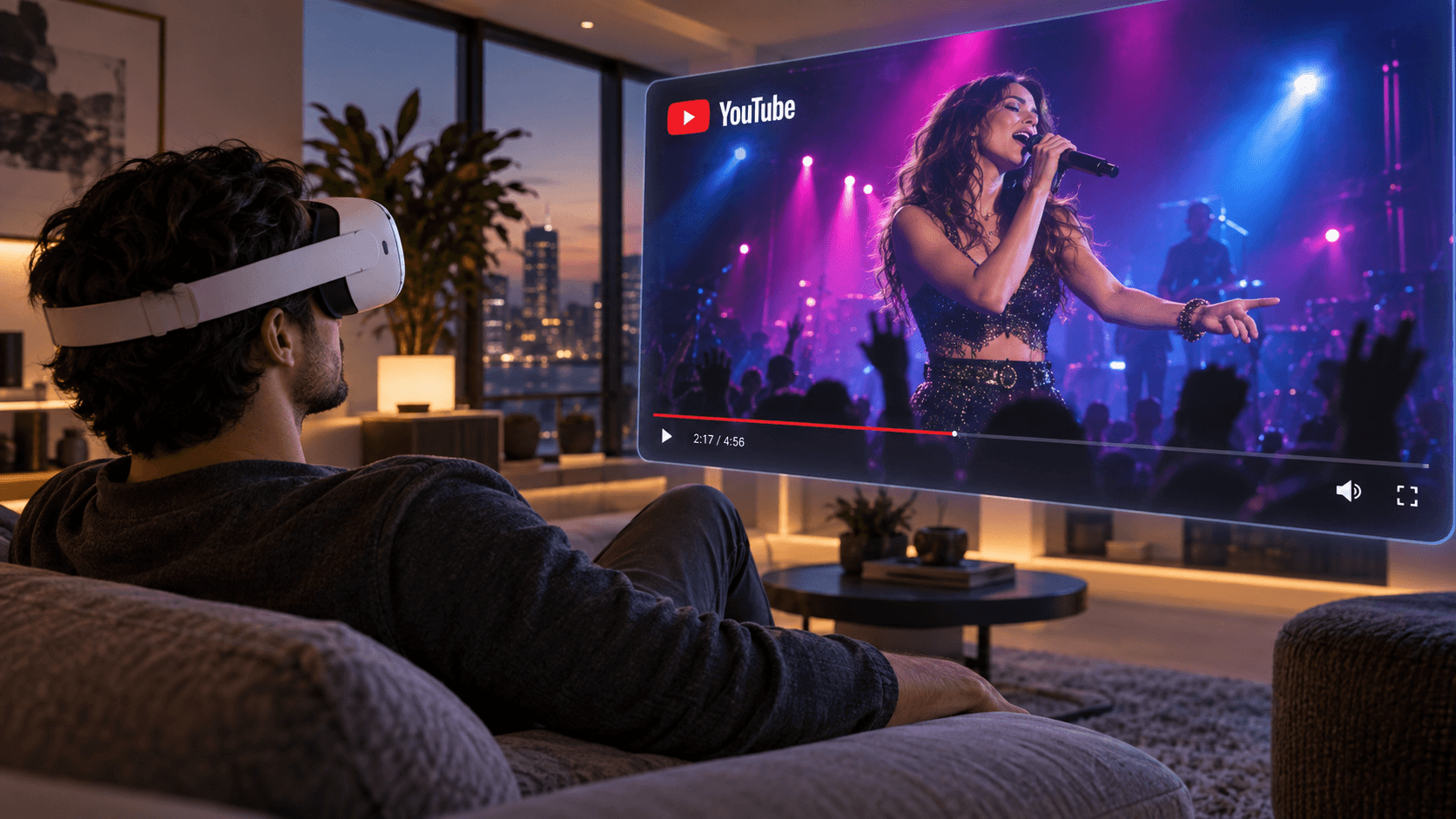
How to Watch YouTube, Hulu, Disney+, Apple TV, and Prime Video in the NEX Browser
Use NEX 1.3.0.0 or later to open YouTube, Hulu, Disney+, Apple TV, and Prime Video inside the NEX App on Meta Quest and watch streaming video in a VR environment.
Maybe you want to catch up with a favorite YouTube creator, watch a concert, or continue a show on Hulu, Disney+, Apple TV, or Prime Video. Now you can do it without leaving NEX. Select Browser from the bottom toolbar to open these streaming services and watch them inside the App's VR viewing environment.
NEX is a 2D and 3D video player for Meta Quest. Its built-in browser keeps streaming content and local videos in the NEX viewing environment you choose, so you do not have to keep switching between apps.
Quick navigation
- How to open Browser in NEX
- How to watch YouTube in NEX
- How to watch Hulu, Disney+, Apple TV, and Prime Video
- Do I need a streaming account to use the NEX browser?
- Why is a service missing or a video not playing?
- How do I hide the YouTube search panel after playback starts?
How to open the NEX browser
- Update NEX to version 1.3.0.0 or later on Meta Quest, then open the App.
- Find the toolbar at the bottom of the screen and select Browser.
- Choose a service from the browser list, such as YouTube, Hulu, Disney+, Apple TV, or Prime Video.
Some services require you to sign in or have an active subscription. Follow the on-screen instructions when you open a service for the first time.
YouTube example: search and play a video
After you select YouTube, NEX opens a small browsing panel. Search for a favorite creator, music video, concert, gaming video, or travel channel, then select a video to start watching.
Once playback begins, click anywhere outside the panel to hide it and bring the video back into focus. You stay inside NEX throughout, and it is easy to bring the panel back when you want another video.
How do other streaming services work?
Hulu, Disney+, Apple TV, and Prime Video work in much the same way: choose the service under Browser, sign in and find something to watch in the small panel, then click outside the panel to hide the controls after playback starts.
Frequently asked questions
Do I need a streaming account to use the NEX browser?
It depends on the service. Some YouTube videos are available without signing in. Hulu, Disney+, Apple TV, and Prime Video generally require an account, and some content requires an active subscription.
Why is a service missing or a video not playing?
First, make sure NEX is up to date. Then check your network connection, account, and subscription. Service shortcuts, catalogs, and playback compatibility can vary by country or region, platform policy, and future updates.
How do I hide the YouTube search panel after playback starts?
After the video begins playing, click anywhere outside the small panel to hide it and continue watching.
Related reading
- How to watch YouTube in 3D on Meta Quest
- How to stream a Windows PC screen to Meta Quest
- How to watch videos from local storage, USB, a PC, or NAS on Meta Quest
Open the latest version of NEX, select Browser from the bottom toolbar, and find the online video you want without leaving your viewing environment.
Regional availability and compatibility: YouTube, Hulu, Disney+, Apple TV, and Prime Video availability, catalogs, sign-in methods, subscription requirements, and playback compatibility may differ by country or region and may change with platform policies or App updates. Follow each service's current official terms and only watch content you are authorized to access.