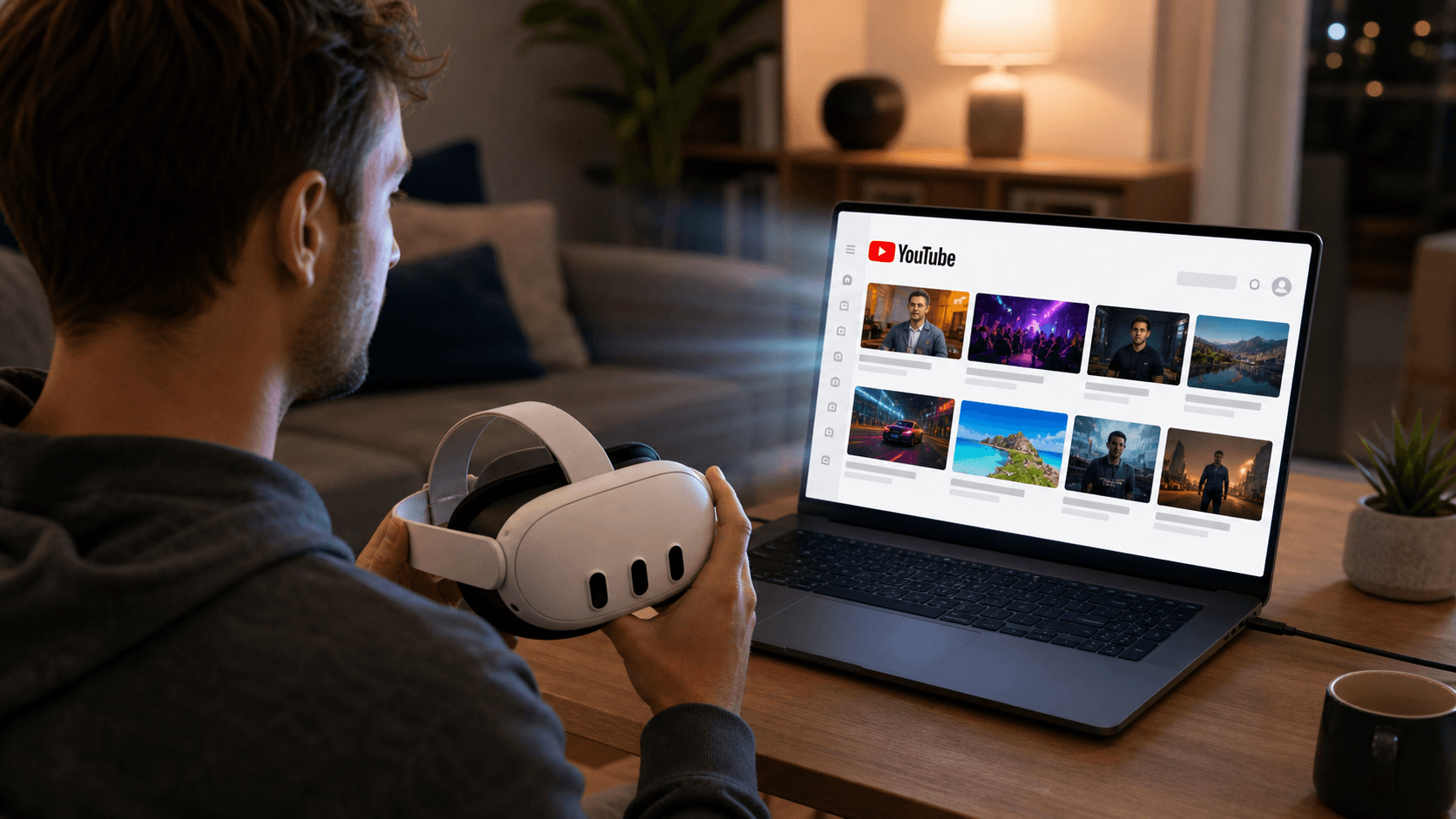
How to Watch YouTube in 3D on Meta Quest 3
Stream YouTube from a Windows PC to Meta Quest 3 with NEX Link, then use NEX to enable a real-time 3D effect.
How to Watch YouTube in 3D on Meta Quest 3
Everyone has their own corner of YouTube that is hard to leave: a favorite creator with a new upload, a music video you keep coming back to, a live performance, a gaming channel, or a travel video after a long day. We usually watch all of it on a flat monitor. Bringing that familiar content into Meta Quest 3 and adding a little real-time 3D can make it feel surprisingly fresh.
Most YouTube videos are standard 2D content, but PC desktop streaming can give the picture a real-time 3D effect on Meta Quest 3 or Quest 3S. NEX is a video player for Meta Quest, while NEX Link is its companion computer app. Once the two are connected, NEX Link can stream what is currently displayed on your Windows PC to the headset, and NEX can apply real-time 3D processing to that stream.
Nothing about your usual YouTube routine needs to change. You still sign in through the browser, open your subscriptions, and choose something you genuinely want to watch. NEX does not download the video or convert it into a new file; it simply brings the PC screen into your headset and adds the optional 3D effect.
Before you begin: Install the latest versions of NEX on your Meta Quest and NEX Link on your Windows PC. PC desktop streaming and real-time 3D are currently confirmed for Windows only.
What You Need
- Meta Quest 3 or Quest 3S;
- A Windows PC;
- The latest version of NEX installed on the headset;
- The latest version of NEX Link installed on the PC.
You can download the latest NEX Link from the NEX website. If you see Waiting for plugin to start when entering desktop streaming for the first time, open Settings in NEX Link, install or update the required 3D plugin, and try connecting again.
Step 1: Open YouTube on Your PC
Launch NEX Link and leave it running. In your browser, open YouTube. Start with something familiar: a new upload from a creator you follow, a favorite music video, or a gaming or travel video with plenty of visual depth. Familiar content makes it easier to notice the difference before and after enabling 3D.
YouTube normally works in both Firefox and Chrome, so this tutorial does not require one specific browser. If the video plays on the PC but its streamed area appears black in the headset, refresh the page or test Firefox to rule out a browser capture compatibility issue.
Step 2: Connect Your Windows PC in NEX
Make sure your PC and Quest are connected to the same local network. Put on the headset, open the latest version of NEX, enter NEX Link, and select the computer on which NEX Link is running.
After the connection is established, open PC desktop streaming. You should now see the Windows desktop and the YouTube video in Meta Quest.
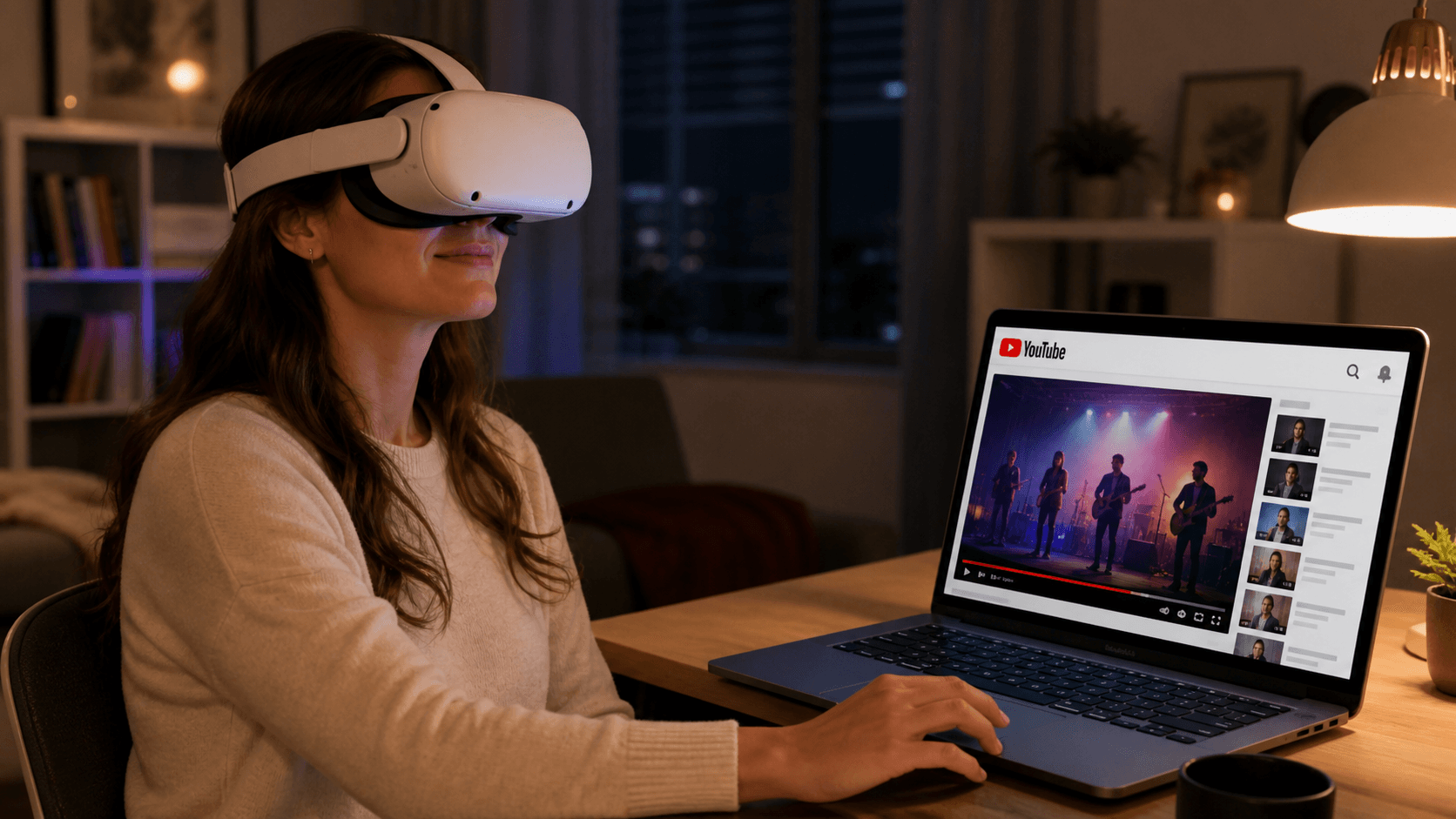
Step 3: Enable real-time 3D for YouTube
Once the desktop stream is visible, enable real-time 3D from the 3D controls in NEX. NEX analyzes the incoming 2D image and adds depth while you watch.
Real-time 3D does not mean the original video is native stereoscopic content supplied by YouTube. It is a viewing effect generated by NEX during playback, so the result can vary from one video to another. In a music video or live performance, the stage, performers, and background may feel more clearly separated. Travel footage can reveal more distance between a nearby street and the landscape beyond it. In gaming videos, the character, interface, and game world may gain a more noticeable sense of depth.
More intensity is not always better. Videos with lots of subtitles or rapid cuts may take a little time to get used to. For your first test, choose a familiar short video, increase the 3D intensity gradually, and stop where the picture feels natural and comfortable to you.
How to Make YouTube Desktop Streaming More Stable
A few simple adjustments can help reduce interruptions:
- Use a stable home network and connect the PC and Quest to the same router;
- If playback stutters, lower the YouTube video quality first and increase it gradually;
- Pause unnecessary downloads, cloud synchronization, and other high-bandwidth tasks;
- Allow NEX Link to communicate through Windows Firewall on the current local network;
- If you use a VPN, make sure it does not block local communication between the PC and Quest;
- Keep your browser, NEX, and NEX Link up to date.
If NEX cannot find the computer, first confirm that both devices are on the same network and that NEX Link is running. If the desktop is visible but the video area is not displayed correctly, compare Firefox and Chrome to determine whether the issue is related to the network connection or browser capture.
Experience Regular YouTube Videos with a 3D Effect on Meta Quest
With PC desktop streaming in NEX Link, you do not have to download a YouTube video or copy a file to the Quest. Whether you are catching up with a favorite creator, replaying a music video, or looking for a little more space in travel and gaming footage, anything that plays normally in a Windows browser can be brought into NEX and given added depth with real-time 3D.
Actual image quality and smoothness depend on your PC, browser, YouTube playback quality, and local network. Only watch content you are authorized to access and follow the YouTube Terms of Service.
Related reading
- How to Stream a Windows PC Screen to Meta Quest
- NEX Guide to 2D-to-3D and Real-Time 3D
- How to Watch Netflix in 3D on Meta Quest
Frequently asked questions
Why can't NEX Link find my Quest 2?
NEX supports Quest 2. Update NEX and NEX Link, place the computer and Quest 2 on the same local network, and keep both apps running. If discovery still fails, check Windows Firewall and temporarily disable a VPN, guest network, or security software that may block local communication.
Why does real-time 3D show little depth?
Real-time 3D varies with the picture. Content with clear separation between foreground and background and steadier shots usually shows depth more clearly. Compare a familiar short clip before and after enabling the feature, and see the NEX 2D-to-3D guide for more options.