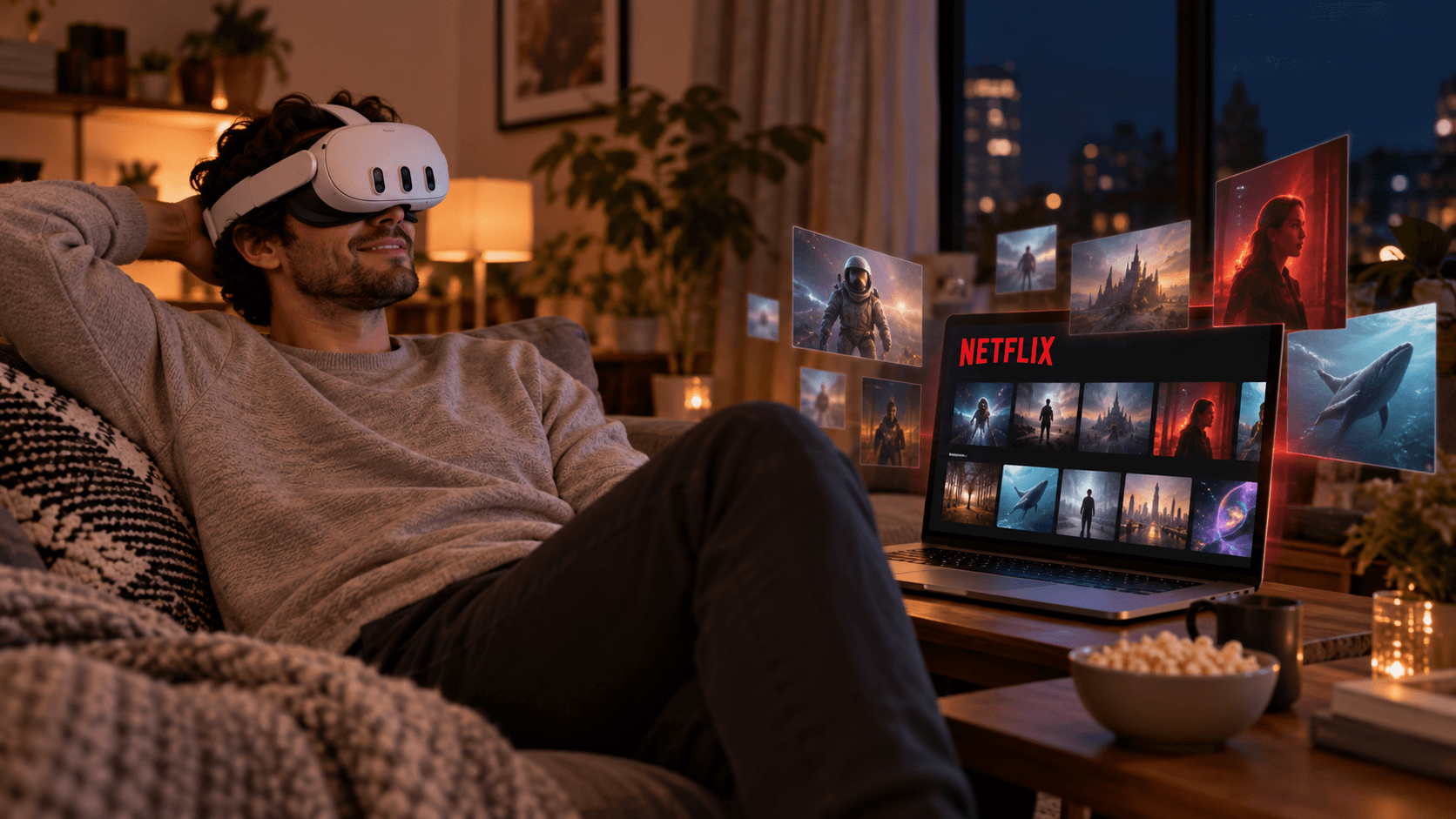
How to Watch Netflix in 3D on Meta Quest with NEX Link
Stream Netflix from a Windows PC to Meta Quest with Firefox and NEX Link, enable real-time 3D, and troubleshoot NVIDIA GPU and black-screen issues.
Want to continue a Netflix show without spending the evening staring at a small PC screen? Stream your Windows desktop to Meta Quest, place the video in a NEX viewing environment, and add real-time 3D depth to regular 2D content.
NEX is a 2D and 3D video player for Meta Quest. Its companion Windows app, NEX Link, streams your PC desktop to the headset. This is not native 3D supplied by Netflix: NEX generates depth during playback and does not download or save Netflix content.
Quick navigation
- Why use Firefox?
- What do you need?
- How do you stream Netflix to Meta Quest?
- How do you enable real-time 3D in NEX?
- How do you fix a black screen?
- Why does real-time 3D look subtle?
Why use Firefox?
Netflix uses content protection. With some browser and system combinations, the Windows desktop streams normally while the protected video area appears black. If this happens in Chrome, try the latest Firefox as a compatibility test. Firefox does not bypass content protection and cannot guarantee playback for every device, region, or title. See Netflix's Windows browser requirements for current support.
What you need
- Meta Quest 2, Meta Quest 3, or Meta Quest 3S;
- a Windows PC with an NVIDIA GPU;
- NEX 1.2.2.0 or later and the latest NEX Link;
- the latest Firefox and an active Netflix account and subscription;
- the PC and Meta Quest on the same stable local network.
The PC desktop streaming method in this guide currently requires an NVIDIA GPU. AMD GPU users can still use AI 3D with video files they own inside NEX, but not this Netflix streaming workflow.
How to stream Netflix to Meta Quest
- Open Netflix in Firefox on your Windows PC, sign in, and start a video.
- Launch the latest NEX Link and keep it running.
- Confirm that the PC and Meta Quest are on the same local network.
- Open NEX on the headset, enter NEX Link, select the PC, and start PC desktop streaming.
Before enabling 3D, check that the Windows desktop, Netflix video, and audio all appear correctly.
How to enable real-time 3D in NEX
Once Netflix is visible through PC desktop streaming, enable real-time 3D in NEX. Videos with clear separation between foreground and background and relatively steady shots usually show depth more clearly than very dark or rapidly edited scenes.
How to fix a black screen when streaming Netflix
- Confirm that Netflix plays normally on the PC;
- switch from Chrome to the latest Firefox and refresh the page;
- update Firefox, NEX, NEX Link, and the GPU driver;
- allow NEX Link through Windows Firewall on the local network;
- close screen recorders or remote-desktop software that may use desktop capture.
If Firefox still shows a black screen, do not disable or modify content-protection settings. Use a viewing method officially supported by Netflix instead.
Frequently asked questions
Why can't NEX Link find my Quest 2?
Update NEX and NEX Link, keep both running, and make sure the PC and Quest 2 can reach each other on the same local network. Also check Windows Firewall. A VPN, guest network, or security software may block device discovery.
Why does real-time 3D look subtle?
The effect varies with the picture. Test a familiar scene with clear foreground-background separation and steady camera movement, then compare it before and after enabling 3D. For more settings, see the NEX 2D-to-3D and real-time 3D guide.
Related reading
Regional availability and compatibility: Netflix availability, catalogs, plans, quality, and playback behavior vary by country or region and may change with platform, browser, or content-protection updates. A VPN or proxy may affect sign-in and the visible catalog. This method is not guaranteed for every account, title, or PC configuration. Only watch content you are authorized to access and follow Netflix's terms and local law.