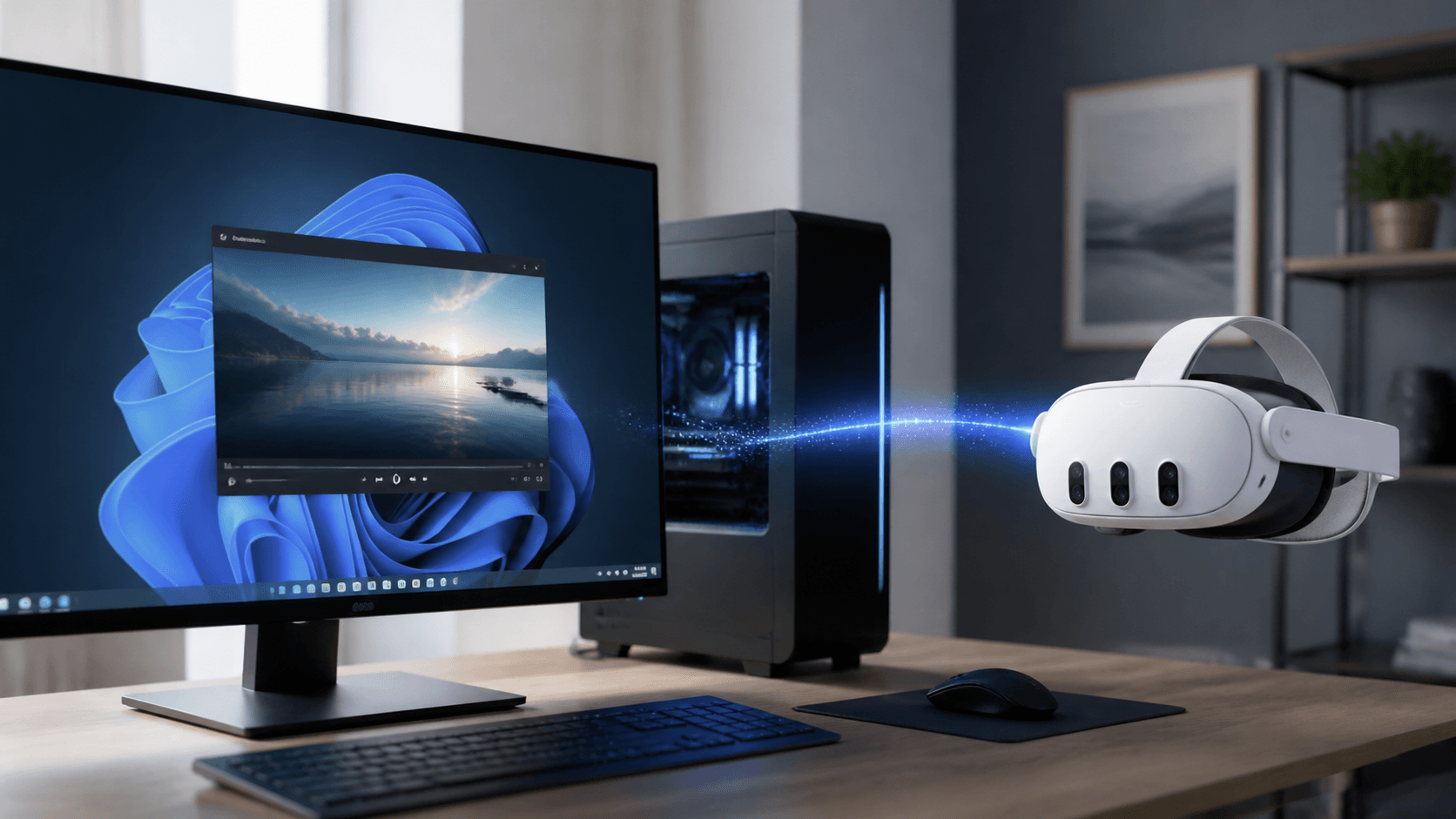
How to Stream Your Windows PC Screen to Meta Quest 3 and Enable Real-Time 3D
Use NEX Link to stream your Windows PC desktop to Meta Quest 3 or Quest 3S in real time, and enable real-time 3D with NEX.
How to Stream Your Windows PC Screen to Meta Quest 3 and Enable Real-Time 3D
If you want to view your computer screen in Meta Quest 3 or Quest 3S, you don't have to copy video files to the headset first. NEX is a video player for Meta Quest; NEX Link is its companion Windows desktop app. When connected, you can stream your Windows desktop directly to the headset, with support for real-time 3D.
This means you can watch in Quest what your computer is displaying, and enable 3D effects on demand. This article covers preparation, the basic connection process, and what to check if you can't connect.
Update before you start: Make sure both NEX on your headset and NEX Link on your Windows PC are updated to the latest versions. Desktop streaming and real-time 3D are new features; older versions may lack the relevant options or fail to connect properly. At the time of release, these features correspond to NEX 1.1.0.0 and NEX Link 1.6.2. If a newer version is available on the official website, install that instead.
What is NEX's PC Desktop Streaming?
Desktop streaming is different from playing videos from a shared folder. It transmits the current desktop screen of your computer, so you can view content from your PC directly in Meta Quest.
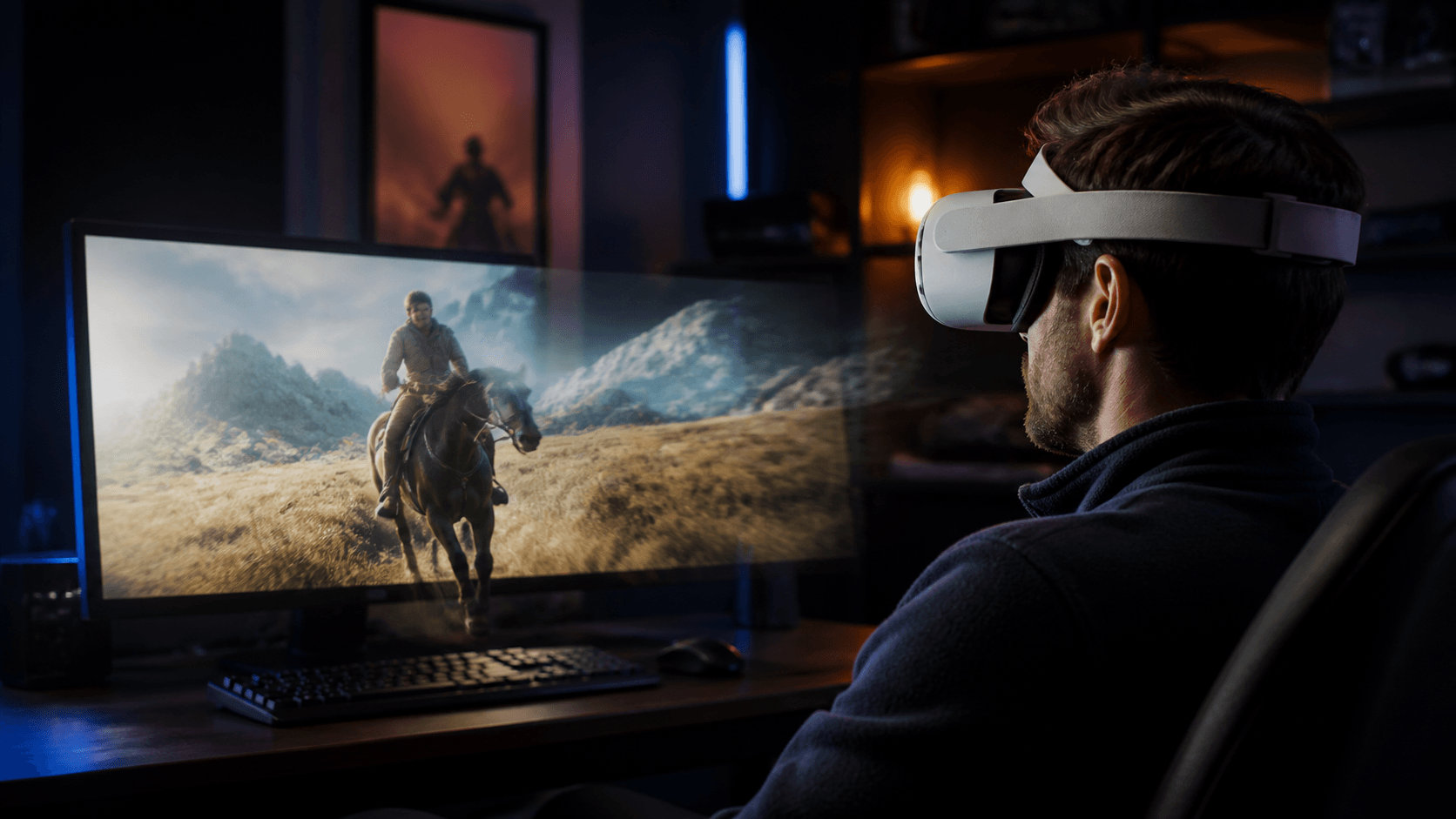
The new NEX also supports real-time 3D for the streamed screen, giving ordinary 2D content a more layered 3D effect while watching.
What You Need Before Starting
- Meta Quest 3 or Quest 3S;
- A Windows PC;
- The latest version of NEX installed on your headset;
- The latest version of NEX Link installed on your PC;
- Your PC and Meta Quest connected to the same local network that allows them to communicate.
You can download the latest NEX Link from the NEX official website. When using the 3D feature for the first time, if the software prompts you to install or update the 3D plugin, follow the instructions to complete it.
How to Stream Your PC Screen to Meta Quest
Step 1: Update and Open NEX Link
Install or update NEX Link on your Windows PC, then keep the app running. If a firewall authorization prompt appears, allow NEX Link to communicate on your local network.
NEX Link 1.6.2 improves Windows firewall authorization detection and supports manual installation and incremental updates of the 3D plugin, further refining the connection and 3D plugin setup process.
Step 2: Connect to Your PC in Meta Quest
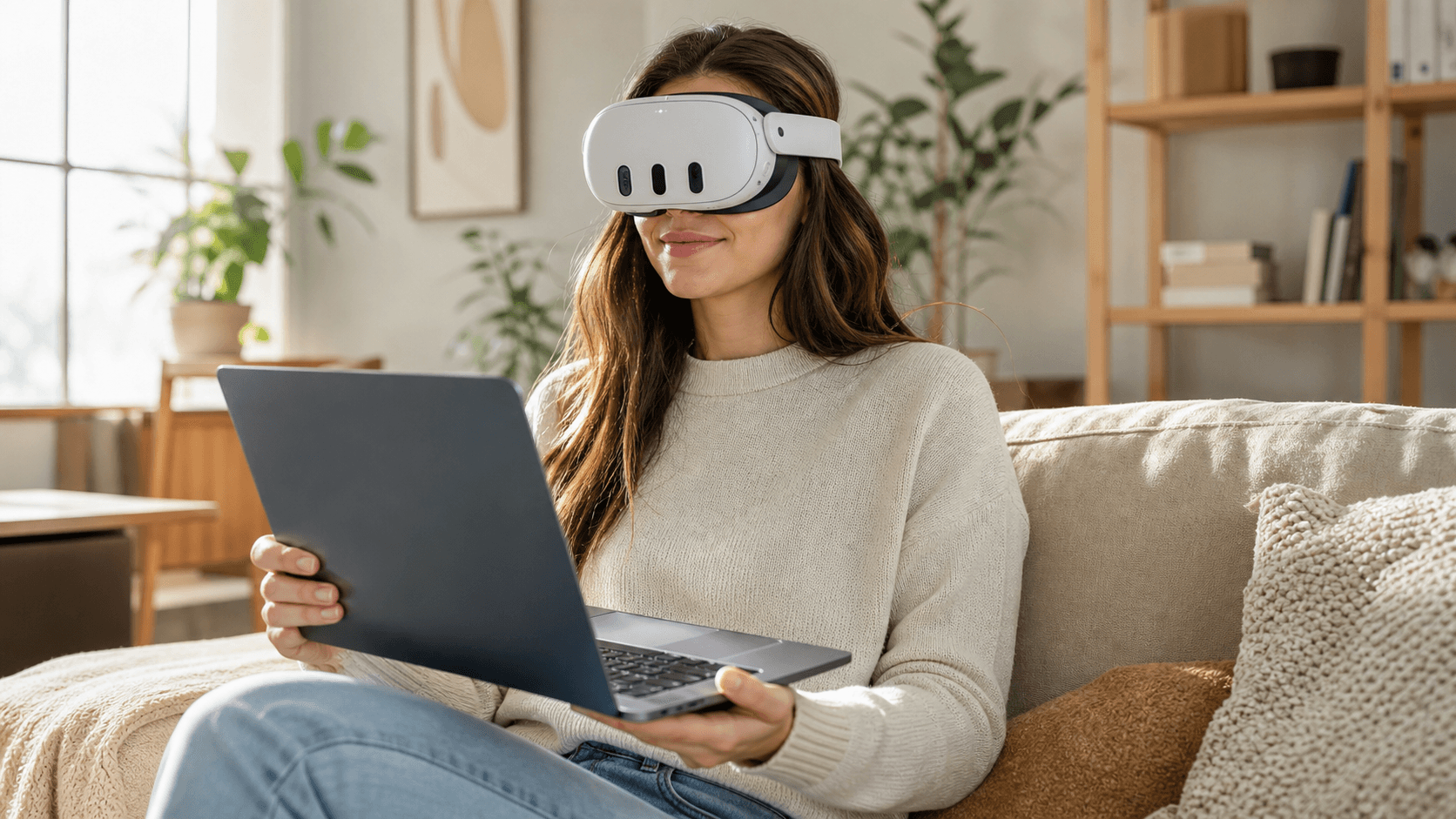
Make sure your PC and Quest are on the same local network. Put on your headset, open the latest version of NEX, go to NEX Link, and connect to the PC running NEX Link.
Once connected, enter the PC desktop streaming feature, and you'll see your Windows PC's current screen in NEX.
Step 3: Enable Real-Time 3D
After the PC desktop screen starts streaming, enable real-time 3D in the relevant 3D controls in NEX. Once enabled, NEX applies a 3D effect to the current stream.
The 3D effect may vary depending on the content. For your first use, choose a familiar video to confirm the depth and viewing comfort before continuing.
Why Update to NEX Link 1.6.2 or Higher?
In addition to supporting NEX's PC desktop streaming, NEX Link 1.6.2 includes several improvements related to 3D functionality and connection stability:
- Faster 3D conversion on Windows;
- Improved Windows firewall authorization detection;
- Support for manual installation and incremental updates of the 3D plugin;
- Checks available disk space during plugin download and installation;
- Supports minimizing to the Windows system tray;
- Adds a more convenient user log submission entry.
For users who just want to experience desktop streaming, you don't need to study the full changelog. The most important thing is to update both NEX and NEX Link, complete firewall authorization, and install any necessary 3D plugins.
What to Check If You Can't See Your PC
If your PC doesn't appear in NEX, check the following in order:
- Are both NEX and NEX Link updated to the latest versions?
- Is NEX Link running on your Windows PC?
- Are your PC and Quest connected to the same local network?
- Does Windows Firewall allow NEX Link to communicate?
- Are VPNs, third-party security software, or guest networks blocking device discovery?
- Has the 3D plugin been installed or updated correctly as prompted?
Public, campus, and office networks may restrict communication between devices. If both devices can access the internet but still can't discover each other, try a regular home network or another network that allows local device communication.
Experience Real-Time 3D of Your PC Desktop in Meta Quest
NEX's new desktop streaming brings your Windows PC screen directly into Meta Quest, and real-time 3D adds depth to ordinary 2D content while watching.
Before you start, update both NEX and NEX Link to the latest versions. After completing the connection and firewall authorization, you can open your PC desktop in the headset and enable real-time 3D as needed.
Related reading
- How to Watch YouTube in 3D on Meta Quest
- How to Watch Netflix in 3D on Meta Quest
- NEX Guide to 2D-to-3D and Real-Time 3D
Frequently asked questions
Why can't NEX Link find my Quest 2?
NEX supports Quest 2. Update NEX and NEX Link, place the computer and Quest 2 on the same local network, and keep both apps running. If discovery still fails, check Windows Firewall and temporarily disable a VPN, guest network, or security software that may block local communication.
Why does real-time 3D show little depth?
Real-time 3D varies with the picture. Content with clear separation between foreground and background and steadier shots usually shows depth more clearly. Compare a familiar short clip before and after enabling the feature, and see the NEX 2D-to-3D guide for more options.