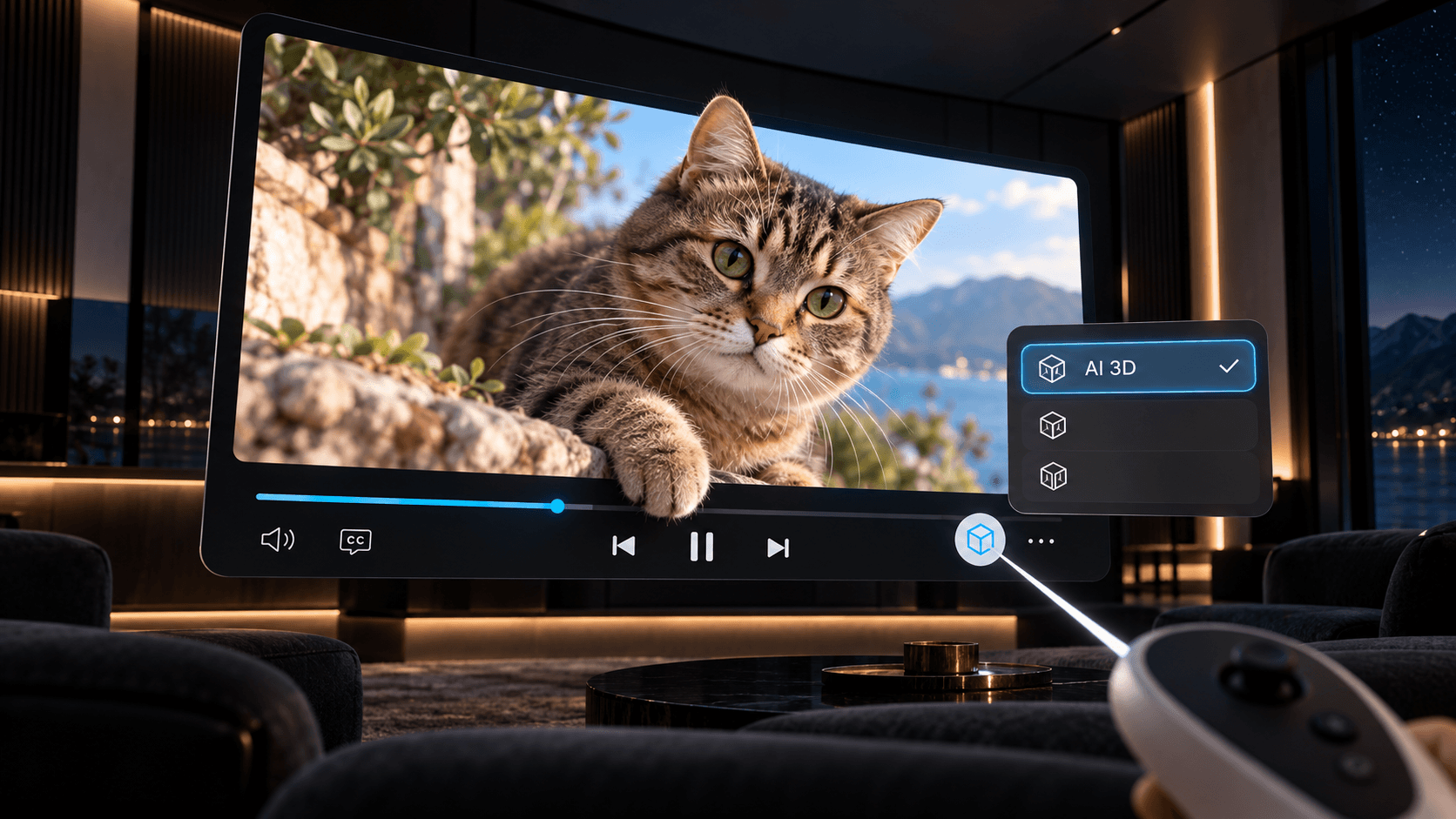
How to Watch 2D Videos in 3D on Meta Quest with One Click
Learn how to watch regular 2D videos in 3D on Meta Quest with one click using the AI 3D playback option in NEX.
Want to see a family video, a travel clip, or a favorite music video with more depth? On Meta Quest, you can play a regular 2D video in NEX and switch on AI 3D from the playback controls. The video becomes Instant 3D while it plays. There is no PC conversion step, and you do not need an external hard drive or other extra equipment.
NEX is a 2D and 3D video player for Meta Quest. Before starting, update NEX to the latest version so the AI 3D option appears in the player.
Table of contents
- What you need
- How to turn a 2D video into 3D
- Watch streaming video in Instant 3D
- Why does the 3D effect look subtle?
- Do you need NEX Link?
What you need
- A Meta Quest headset with the latest version of NEX installed
- A regular 2D video that NEX can play
That is all you need. You do not have to prepare the video on a computer, copy a converted file back to the headset, or connect an external drive. AI 3D works during playback inside NEX.
How to turn a 2D video into 3D
- Open NEX on Meta Quest and play the 2D video you want to watch.
- Open the playback controls.
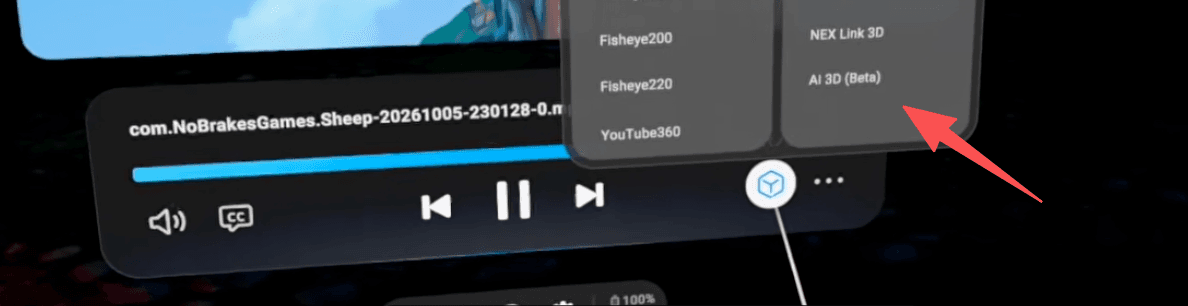
- Select the square icon in the bottom-right corner.
- Choose AI 3D.
NEX will apply Instant 3D to the video as it plays. To return to normal playback, open the same menu and switch back to 2D.
Watch streaming video in Instant 3D
AI 3D also works with compatible video played through the built-in NEX Browser. Open a service such as YouTube, start a video, then use the same square-icon menu to choose AI 3D.
Music videos are a good place to try it. A visually detailed production such as Sabrina Carpenter's “House Tour” or Taylor Swift's “Patient Zero” can feel completely different when the performers, sets, and foreground elements gain more depth.
Streaming support depends on the service. Netflix is not currently supported with AI 3D because of its copyright protection. Other platforms or individual videos with strict DRM may also block playback or prevent AI 3D from working.
Why does the 3D effect look subtle?
The amount of visible depth depends on the video. Try a scene with a clear foreground and background, such as a person standing in front of a landscape or a pet moving toward the camera. If the image still looks flat, open the square-icon menu again and confirm that AI 3D is selected.
Do you need NEX Link?
No. This tutorial uses the AI 3D option built into NEX on Meta Quest. NEX Link is a separate desktop app used for PC-related workflows and is not required for this one-tap playback mode.
Related reading
- NEX 3D Guide: Turn 2D Videos into Instant 3D on Meta Quest
- How to Watch Movies and Videos on Meta Quest
Open a video you already know well, choose AI 3D, and see how it looks with added depth in NEX.