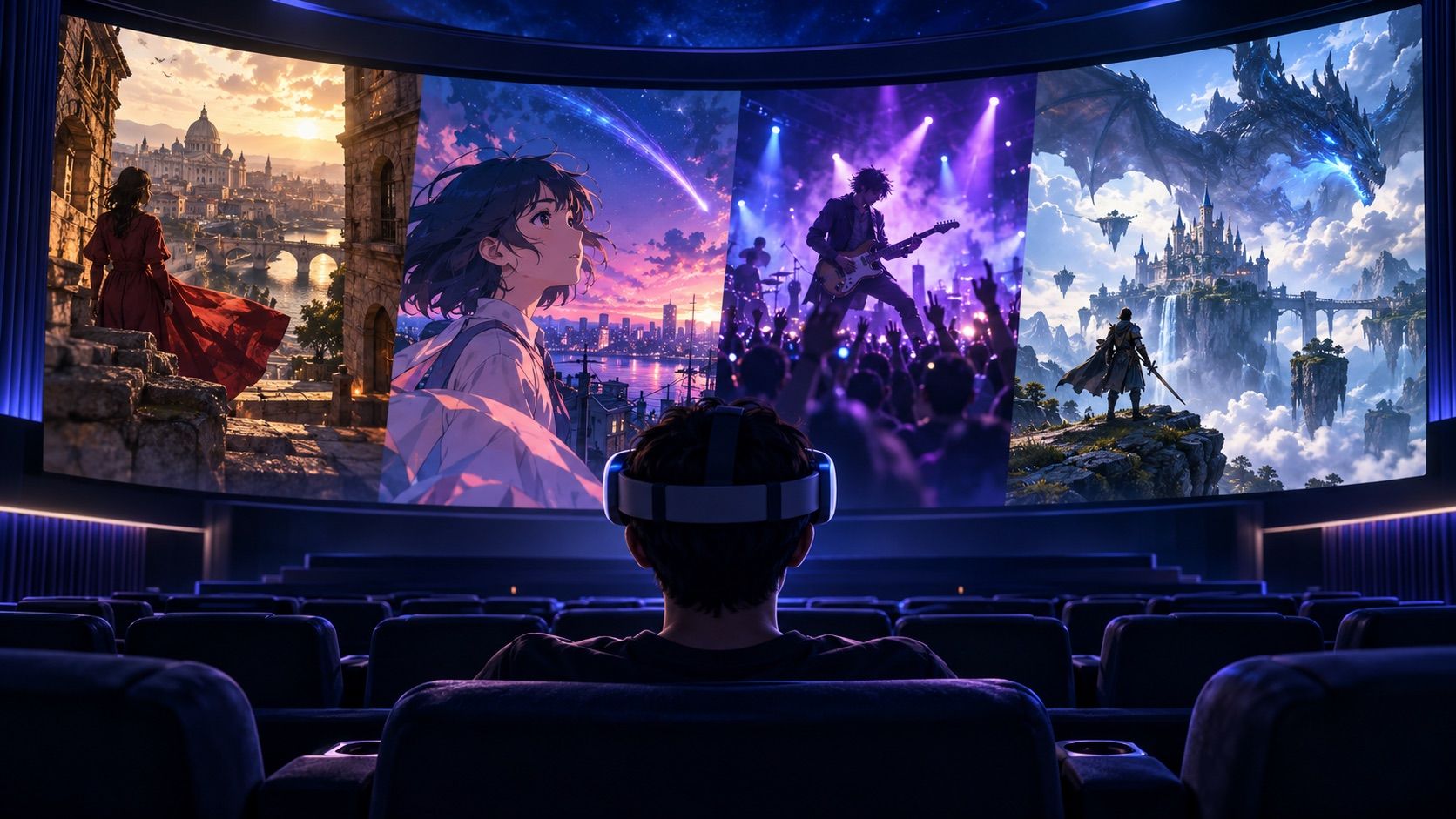
Wondering what kinds of 3D videos you can watch with NEX? From movies and anime to music videos and game trailers, NEX plays multiple 3D video formats. Its 2D-to-3D features can also add depth to ordinary videos, giving familiar scenes more spatial separation. On Meta Quest, you can revisit the videos you enjoy in a personal virtual theater.
- How does NEX Link turn a 2D movie into 3D?
- Can ordinary anime have a sense of 3D depth?
- What changes when you watch a music video with NEX 3D?
- Can you watch game trailers with NEX 3D?
- Which NEX 3D method should you choose?
- Frequently asked questions
- Related articles
How does NEX Link turn a 2D movie into 3D?
Want to revisit a favorite movie with more depth? NEX's 2D-to-3D features can create a clearer sense of distance between nearby people or objects and the scenery behind them. In a forest scene, for example, trees in the foreground may feel more separate from distant mountains. The result depends on the footage; conversion adds estimated depth rather than creating a native 3D film.
To prepare the whole movie in advance, add the file to NEX Link on your computer, select Trans to 3D, then open the original video in NEX on Quest after processing. For a quick trial, turn on Instant 3D on Meta Quest 3 while a supported video plays. If your movie is already SBS or Top-Bottom 3D, skip conversion and select the matching 3D layout in NEX. Seeing two pictures side by side usually means the display mode needs adjusting.
Can ordinary anime have a sense of 3D depth?
Traditional 2D anime can have richly drawn scenes, but its characters and backgrounds still arrive as one flat video image. NEX can add estimated depth to that image, making the separation between a character and a hallway or street behind them easier to notice.
Open anime that NEX can play and enable AI 3D. If you have a local video file, you can also prepare it with NEX Link. This adds depth without changing the original art style. Results vary with the animation, so check a short scene before watching a whole episode in 3D.
What changes when you watch a music video with NEX 3D?
Stage lighting, choreography, and visual effects often put performers at different distances, even when a music video looks flat on a normal screen. NEX's 2D-to-3D features can make the singer, dancers, and stage backdrop feel more distinct from one another. In a concert clip, this can make the stage's front-to-back arrangement easier to see.
Try a K-pop dance video, a live performance, or another music video with visible foreground and background. Play a supported video in NEX with AI 3D, or use NEX Link for a local file. Compare a sustained shot first; rapid cuts and heavy effects may produce less consistent depth.
Can you watch game trailers with NEX 3D?
Yes. Enable AI 3D while a supported 2D game trailer plays in NEX on Quest 3, or convert a saved gameplay recording with NEX Link. A nearby character, a path, and distant mountains may become easier to distinguish. Start with a landscape or slow camera move, then check whether fast action remains comfortable to watch.
NEX also offers other ways to experience games. NEX Link can stream a Windows desktop to Meta Quest and, on supported setups, add real-time 3D to the streamed picture. The built-in NEX Browser can access cloud-gaming services such as now.gg for some lightweight online games without a PC. Browser games are not currently converted to real-time 3D by NEX Browser, and compatibility depends on the service and controls. A trailer remains a video; adding depth does not make it an interactive VR game.
Which NEX 3D method should you choose?
- Already have a 3D file? Open it in NEX and choose the matching SBS, Top-Bottom, or other supported layout. If you still see two pictures, check the display mode.
- Want to watch an ordinary 2D video now? Open it in NEX on a supported Quest headset, bring up playback controls, and select AI 3D. Instant 3D adds depth during playback without a computer or advance conversion; headset differences are covered below.
- Have a 2D file on a PC or Mac? Add the video or folder to NEX Link, right-click the video, select Trans to 3D, and choose Fast or High Quality. When processing finishes, open the original video in NEX on Quest. Processing stays on your computer; the source file does not need to be uploaded to the cloud.
Beyond movies, anime, music videos, and game footage, you can try travel documentaries, sports, and your own recordings. Start with a short 2D video you know and see whether AI 3D adds a depth effect you enjoy.
Frequently asked questions
Can I watch an ordinary 2D video in 3D without a computer?
Yes. Play a 2D video in NEX on a Quest headset that supports Instant 3D and enable AI 3D. A supported computer is only needed if you choose to prepare the video with NEX Link 3D.
Do SBS or Top-Bottom movies need conversion?
No. Those sources already contain separate views for each eye. Select the matching 3D layout in NEX; if depth looks reversed, check the left/right eye order.
Which Quest headsets support Instant 3D?
Instant 3D currently offers the best experience on Meta Quest 3. Quest 2 also supports it, but real-time playback smoothness and depth stability may not match Quest 3.
Does Instant 3D change my original video file?
No. It adds depth during playback and leaves the source file unchanged. NEX Link 3D runs a local processing workflow on a supported computer; check the current 2D-to-3D page for device requirements.
Related articles
- How to Create a Personal VR Movie Theater for Free with NEX: Set up your viewing space, screen, and position.
- How to Watch 3D Movies on Meta Quest: 3 Easy Methods: Choose between native 3D and 2D-to-3D methods.
- NEX Link Guide and FAQ: Connect your computer media library and troubleshoot discovery.