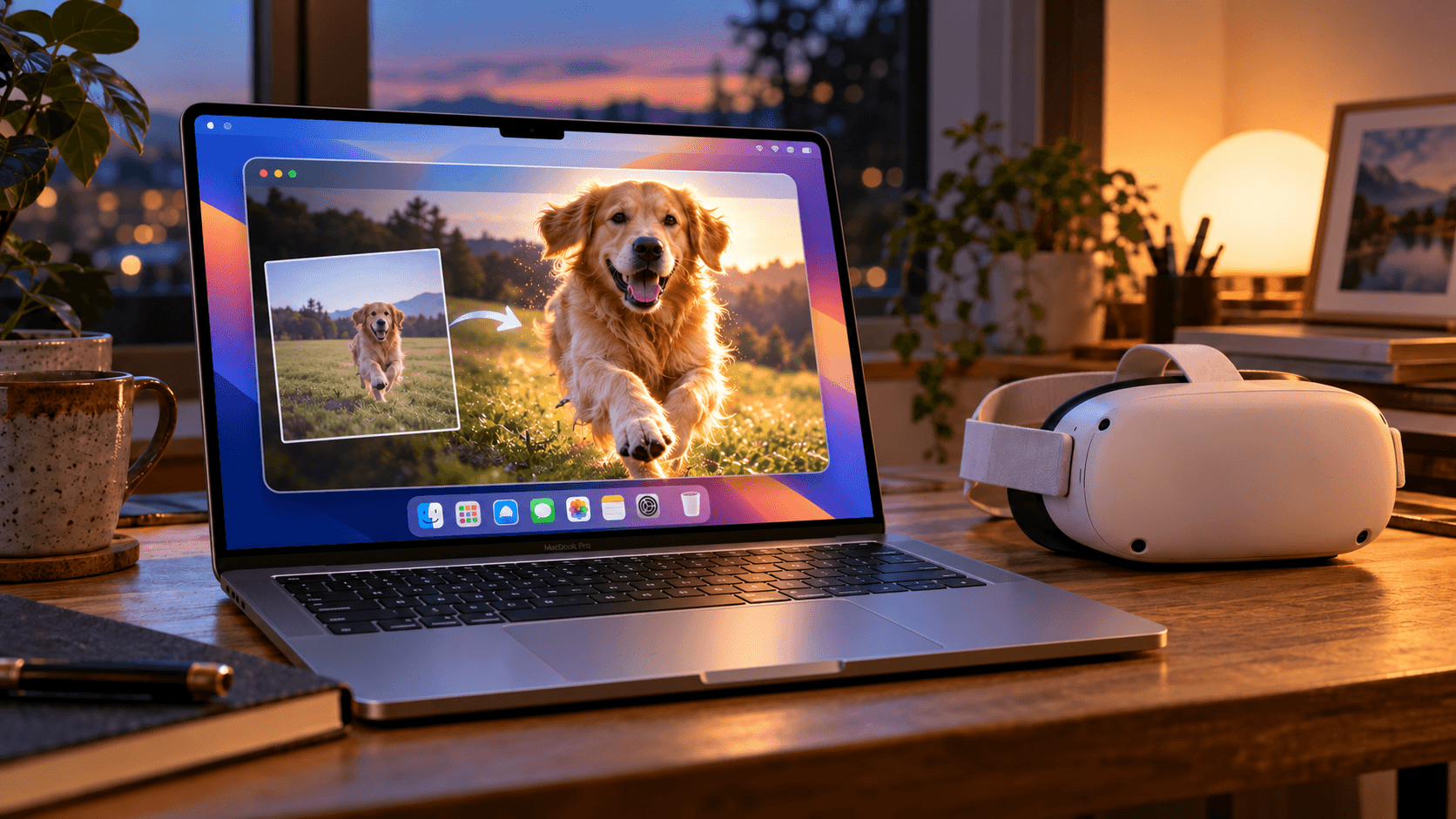
When you look through old videos, have you ever wondered what it would feel like to watch them again in 3D?
It might be your dog running excitedly toward you, your child wobbling through their first bike ride, or a clip of Times Square from a trip to New York. A little more spatial depth can make familiar footage feel different.
If you have a Mac and Meta Quest, you can use NEX to turn regular 2D videos into 3D.
Install the free NEX Link app on your Mac. Once conversion is complete, you can watch the video directly in NEX on Meta Quest without manually transferring it.
Quick navigation
- What does your Mac need?
- How to convert a 2D video to 3D
- How to watch it on Meta Quest
- Frequently asked questions
What does your Mac need?
NEX Link currently requires the following for 3D video conversion on Mac:
- Chip: Apple silicon (M-series)
- System: macOS 15 Sequoia or later
Make sure the latest NEX Link is installed on your Mac and the latest NEX is installed on Meta Quest. Both devices must be connected to the same local network and able to communicate with each other.
How to convert a 2D video to 3D
It takes four steps:
- Visit the NEX Link website, then download and install the Mac version.
- Open NEX Link and add the video or folder you want to convert.
- Right-click the video in the library and select Trans to 3D.
- Open the Task page to check the conversion progress.
Conversion time depends on the video's length and resolution as well as your Mac's performance. For your first try, start with a short clip.
How to watch it on Meta Quest
Once conversion is complete, put on Meta Quest and open NEX:
- Select NEX Link from the main menu and connect to your Mac.
- Find the converted video and play it. NEX will automatically open the corresponding 3D version.
Want to compare the result with the original? Open the playback controls and select 2D under 3D & Panorama to switch back.
Results vary by video. Footage with moving subjects, forward camera movement, and clear separation between foreground and background often shows more noticeable 3D depth.
Frequently asked questions
Why does NEX Link say my Mac is not supported?
Open About This Mac and confirm that your Mac has an M-series chip and runs macOS 15 or later. If it meets both requirements, update NEX Link and restart the app.
Can I export the converted 3D video?
Not currently. Converted results can only be played through NEX on Meta Quest and cannot be exported as standalone video files.
To free up storage, delete a converted result under NEX Link → Task → Completed. Removing the original video from the library will also remove its corresponding 3D version.
Do I need to copy the video to Meta Quest?
No. The video stays on your Mac and can be watched in the headset through NEX Link. Keep both devices on the same reachable local network and leave NEX Link running.
Related reading
Give familiar videos a little more depth
Start with a short pet, family, or travel video. Convert it with NEX Link, put on Meta Quest, and see how it looks in NEX.
Footage you have watched many times may reveal a few details worth noticing again.