What is NEX Link?
NEX is a video player app designed for Meta Quest headsets.
NEX Link is its companion desktop application, allowing NEX to directly access video files stored on your computer—no file transfer required.
In addition, NEX Link includes a one-click feature that converts regular videos into 3D videos. This functionality is explained in detail in the “How to Convert Videos to 3D” section.
Getting Started with NEX Link
Step 1
Visit nexplayer.net, download NEX Link, and install it on your computer.
⚠️ Make sure you download NEX Link, not the NEX headset app.
Step 2
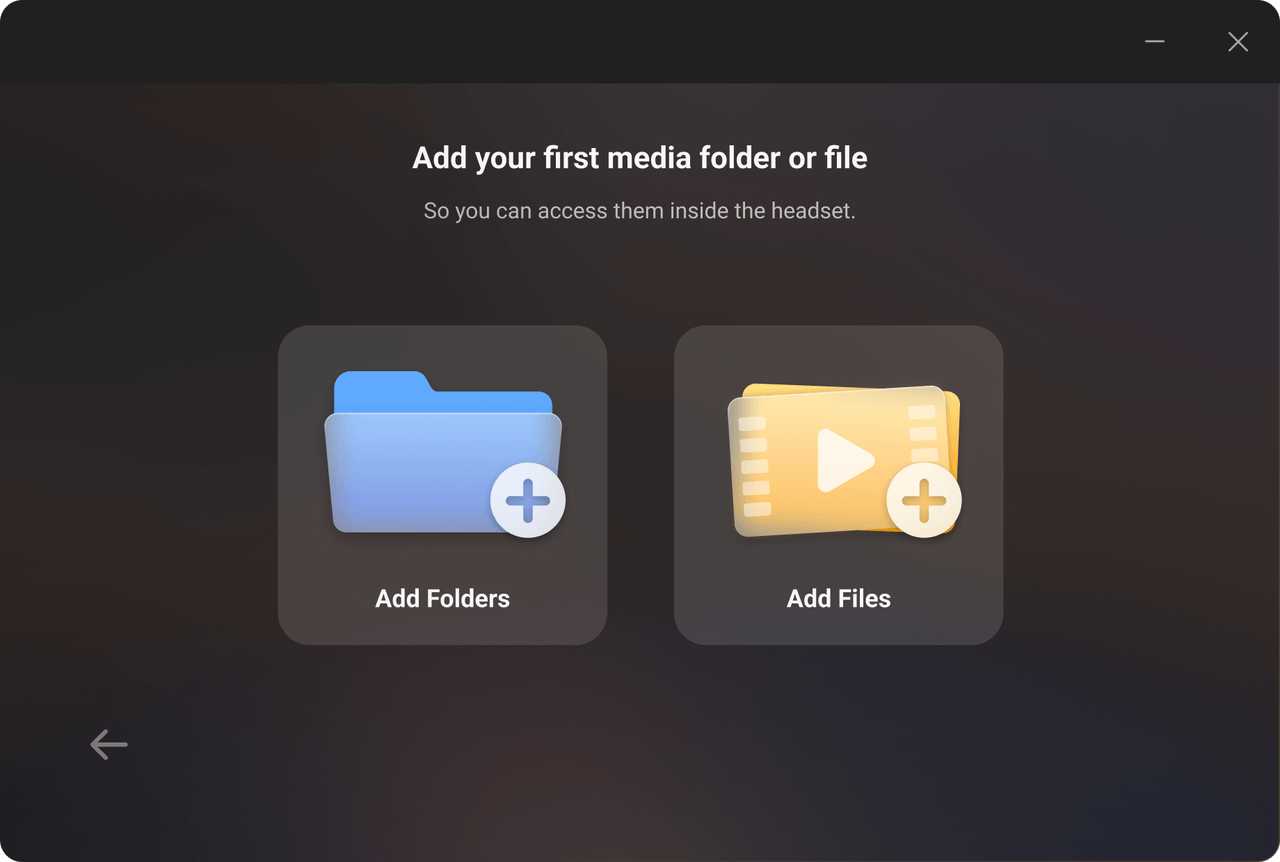
Launch NEX Link. When you run it for the first time, an onboarding guide will prompt you to add folders or video files.
You must add at least one folder or video before the content becomes accessible in your headset.
NEX Link does not automatically scan your entire computer—it only reads the folders and files you manually add.
Step 3
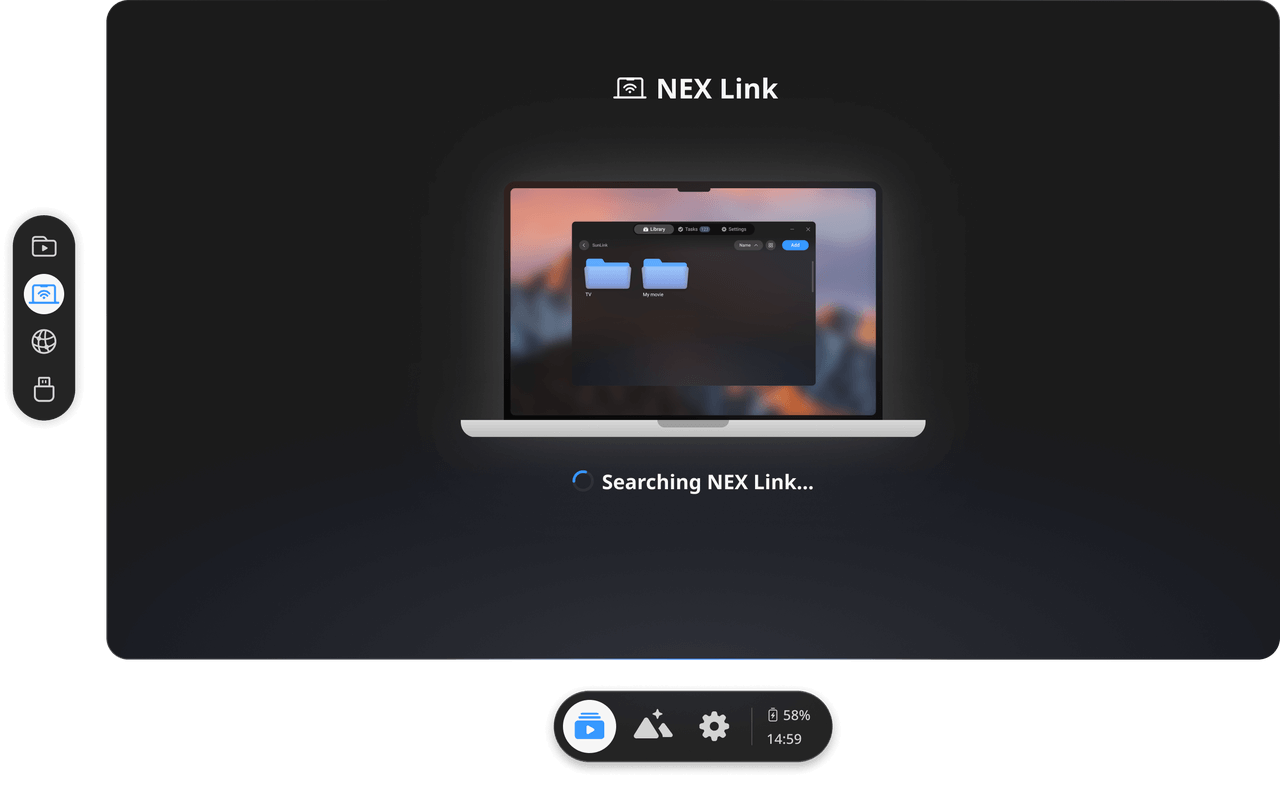
Ensure that your Meta Quest headset and your computer are connected to the same network.
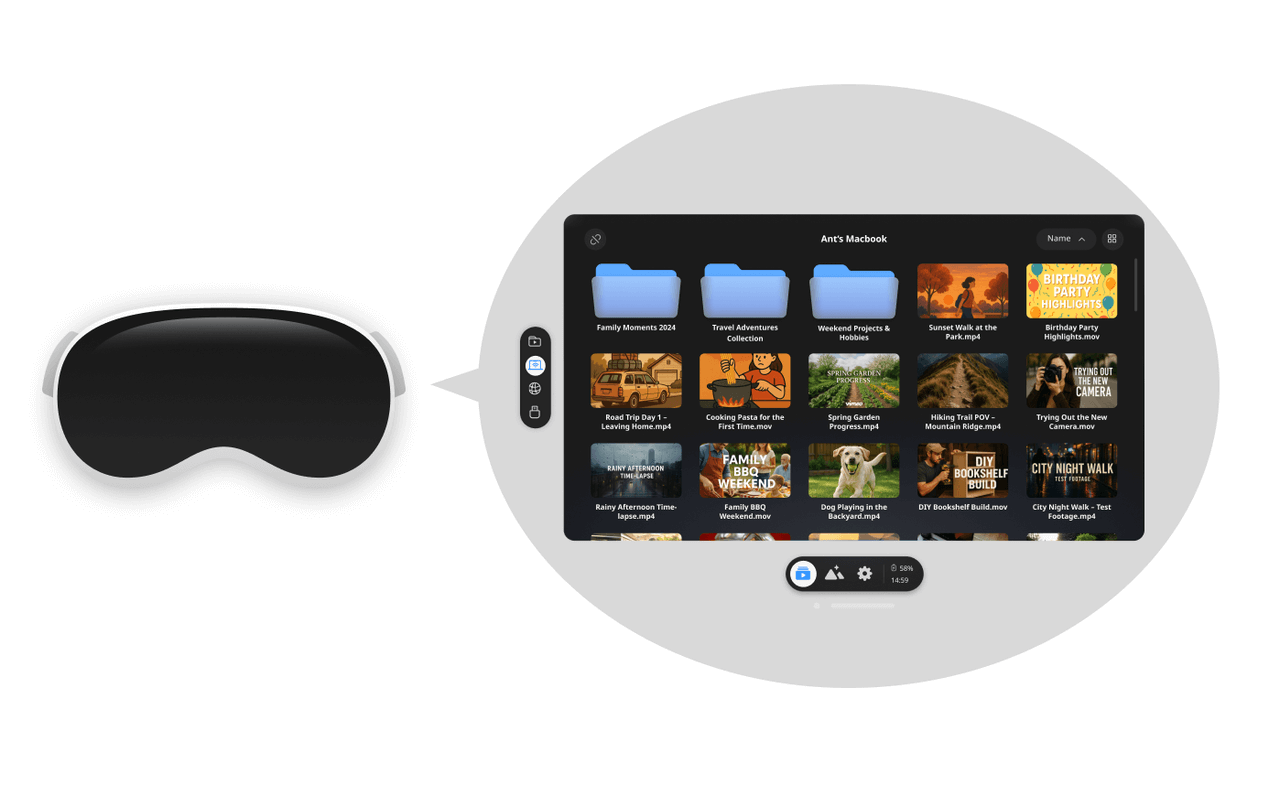
Put on your headset, open NEX, go to Library, and navigate to the NEX Link page.
NEX will automatically discover nearby NEX Link services and connect.
Step 4
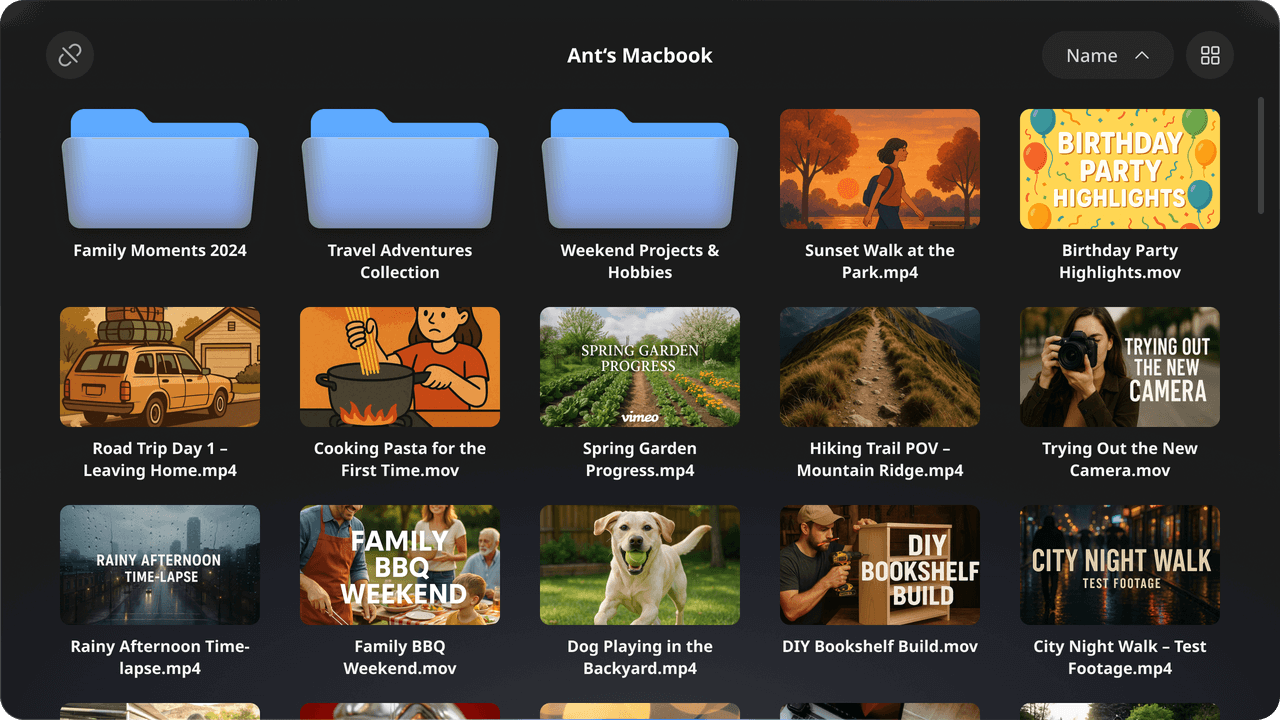
Once connected, the NEX Link page in the Library will display the files available on your computer.
NEX Link Basic FAQs
NEX Link does not appear in my headset
This issue can be caused by problems on the computer, the headset, or the network. Common causes and solutions include:
-
Make sure your Meta Quest headset and computer are connected to the same Wi-Fi network.
-
Ensure NEX Link is added to your computer’s firewall whitelist.
-
Make sure your computer has not entered sleep mode.
-
VPNs, virtual DNS services, third-party security software, firewall apps, antivirus tools, parental control apps, and content blockers may interfere with NEX Link. Try temporarily disabling them and test again. These apps may include keywords such as: “Anti”, “Alarm”, “Firewall”, “Mechanic”, “Malware”, “Protection”, “Security”, “Shield”, “Spy”, “Trust”, “Virus”, or “VPN”.
-
Check whether your router has AP isolation enabled. Your computer and headset must be on the same subnet, or at least able to communicate across subnets. Many public networks (campus, airport, office Wi-Fi) enable AP isolation by default and do not support NEX Link.
-
Some software or services installed on macOS or Windows may interfere with local network discovery. In certain cases, they permanently modify network settings, even after being uninstalled. Common examples include VPN software, organizational monitoring tools, or network drivers. If you suspect this, try forgetting and reconnecting to your Wi-Fi, or resetting your computer.
⚠️ Local network discovery can be affected by many factors, and the list above is not exhaustive.
Because every system and network setup is different, you may need to troubleshoot further.
To isolate the issue, try switching networks (e.g., using a mobile hotspot), using a different computer, or testing with another headset.
I added a video folder, but no videos appear inside it
This usually happens on Windows, due to permission restrictions. Try the following:
-
Run NEX Link as an administrator
-
Grant NEX Link the required permissions in System Settings → Privacy & Security (steps vary depending on Windows version)
-
Move the video folder to another location, such as Drive D instead of Drive C
-
Instead of dragging the folder, click the “+” button to add it. When selecting the folder, double-click to enter it first, then click “Select Folder”
What video formats does NEX Link support?
3gp, mp4, webm, mov, rmvb, rm, avi, flv, mpg, mkv, hevc, m4v, wmv, ts
Does NEX Link support external subtitles?
Yes.
To use external subtitle files, make sure the video and subtitle files are located in the same folder, and add that folder to NEX Link.
If you add only the video file itself, the subtitle file will not be included.
How to Convert Videos to 3D
Step 1
Make sure the video you want to convert has already been added to NEX Link.
Step 2
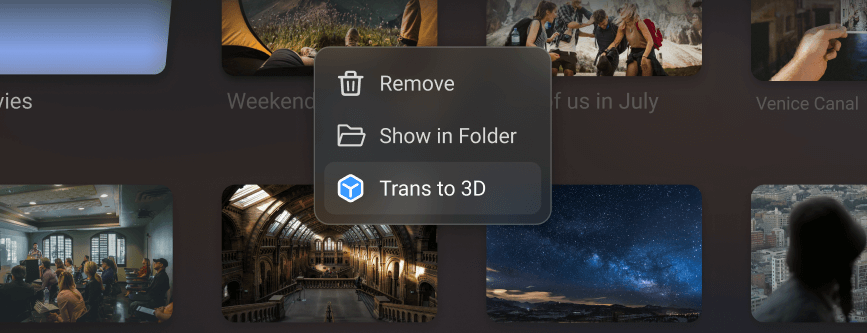
Right-click the video and select “Trans to 3D”.
Step 3
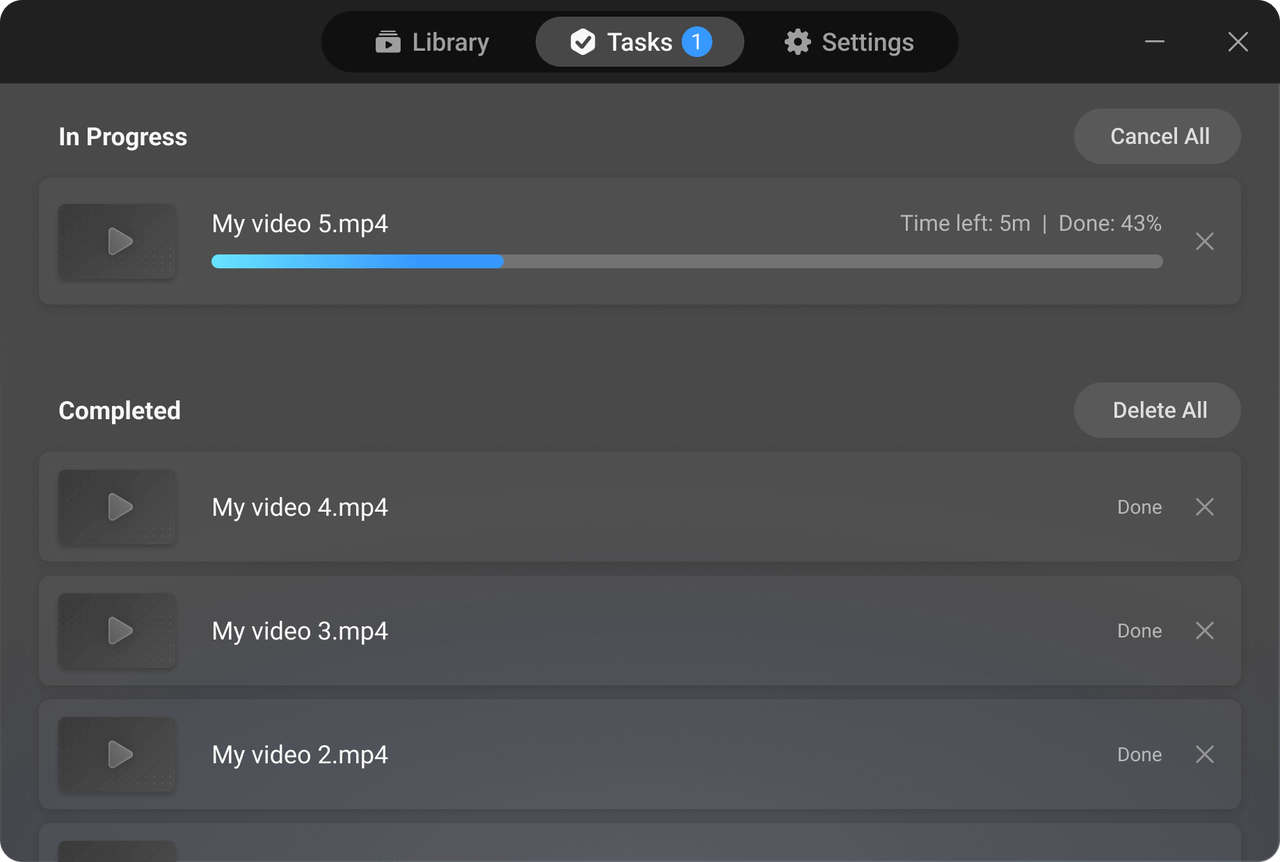
You can monitor the conversion progress on the Task page.
Step 4
Once the conversion is complete, put on your headset and open the original video in NEX.
It will automatically play in 3D mode.
Step 5
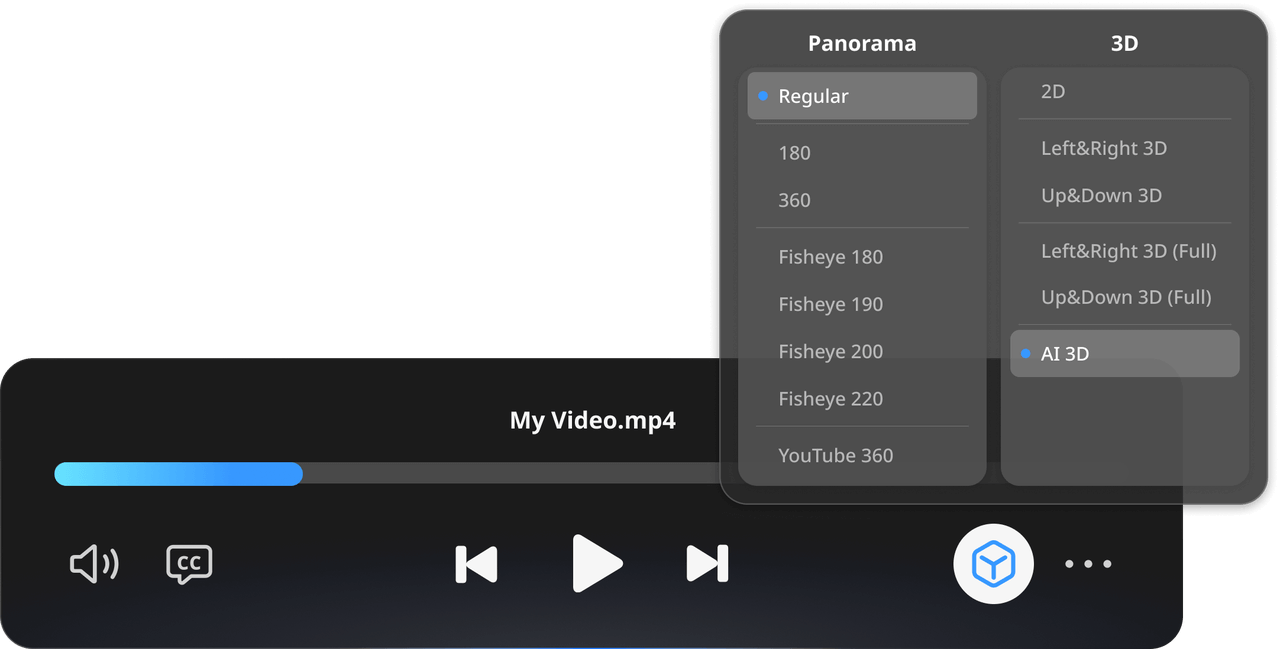
To switch back to the original 2D version, go to 3D & Panorama settings in NEX and select 2D.
3D Conversion FAQs
Can I convert all videos in a folder to 3D at once?
No.
Currently, videos must be converted one at a time.
Can I export or play the converted 3D video on my computer?
No.
Exporting is not supported, and converted 3D videos cannot be played directly on a computer.
They can only be viewed within NEX.
How do I delete converted 3D videos to free up storage?
You have two options:
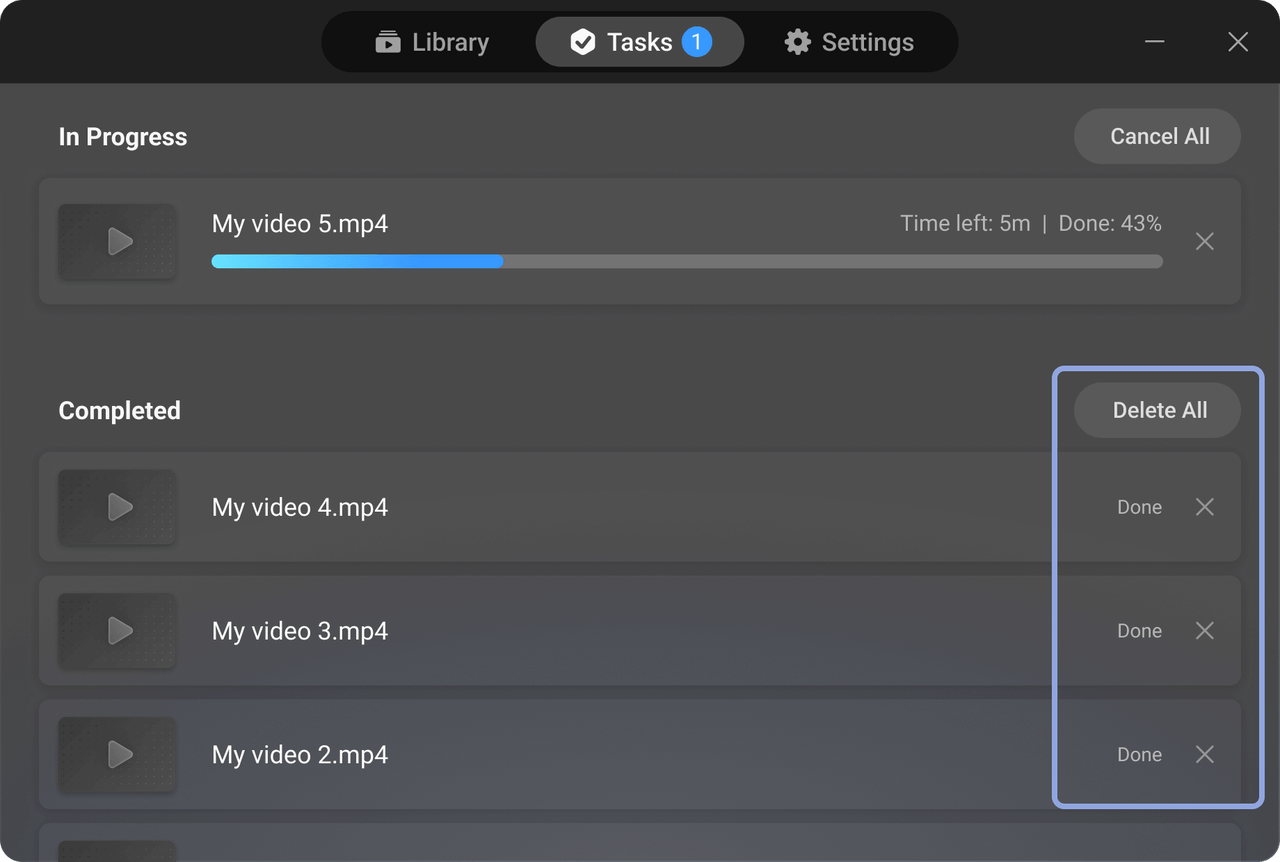
- In NEX Link → Task → Completed, click the delete button for the corresponding video.
- In NEX Link → Library, remove the original video. This will also remove its 3D version.
How do I switch back to 2D playback?
Open the playback controller, select 3D & Panorama, then choose 2D.
Why is my computer currently not supported for 3D conversion?
Due to the vast variety of computer models and hardware configurations on the market, we are continuously expanding our compatibility list. Our team is actively working on optimizing and adapting the software for more devices to ensure the best performance and stability.
For optimal performance, the following hardware requirements currently apply:
- Windows: Supports all chips. If you encounter an unsupported device, you can submit logs to us in the NEX Link app.
- Mac: Requires an Apple Silicon (M-series) chip and macOS 15 Sequoia or later.
- Ubuntu: Requires a 64-bit x86_64 system with Ubuntu 20.04 LTS or later. Ubuntu 22.04 LTS or 24.04 LTS is recommended.